pi-tidy-ui0.1.1
Compact UI for the Pi coding agent: rich tool cards, Rust-powered syntax highlighting, and prompt-cache usage history.
Untested on omp
This is a pi package. No one has reported whether it works on omp yet. If you try it, add your result below.
Reports 0
No reports yet.
Readme
pi-tidy-ui
[!WARNING] Work in progress. This extension is not finished and is under active development.
Follow what your agent changes—not every file it reads.
An extension for Pi that gives commands, code changes and new files room to breathe, while keeping reading and exploration compact. Inspired by OpenCode, built for Pi's terminal workflow.
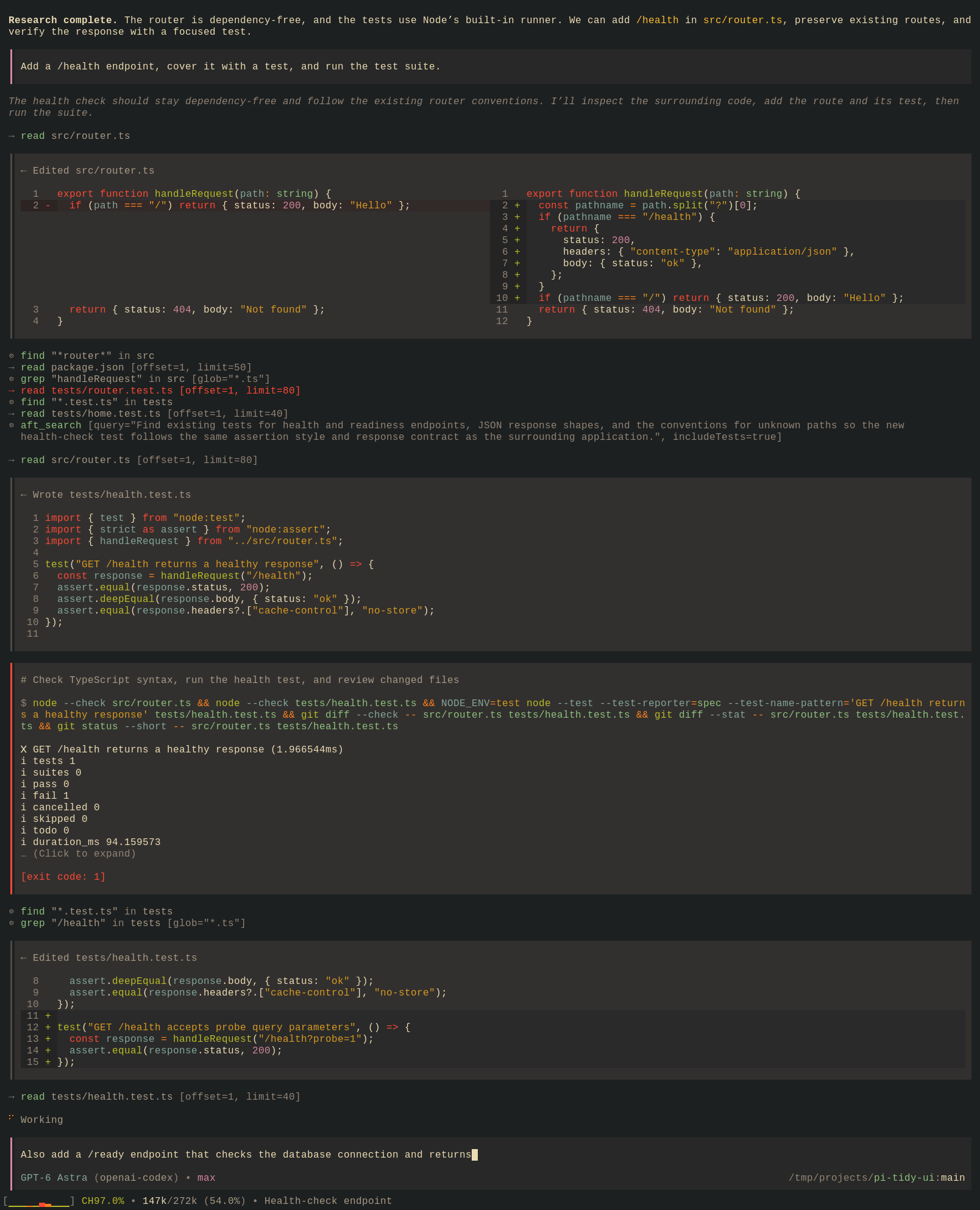
Offline Pi session with pi-tidy-ui, rendered by foot. Model identity, context usage and cache figures are demonstration data.
[!NOTE] Screenshot theme: gruvbox-dark-hard, a custom Pi theme not installed with this extension. By default, pi-tidy-ui follows your current Pi theme, so your colors may differ. To match these colors, use this theme in Pi and enable Set terminal colors from Pi theme in
/tidy-ui.
When you supervise a coding agent, not every tool call deserves the same attention. A sequence of file reads can fill the screen while the command you want to inspect or the diff you need to review stays folded away. pi-tidy-ui changes that balance: less space for investigation, more visibility for execution and changes, with richer syntax highlighting and a short history of prompt-cache reuse.
It changes the presentation, not the agent: the same tools run, the model receives the same results, and the session keeps the same data.
At a glance
| What you want to follow | What pi-tidy-ui shows |
|---|---|
| What the agent is running | Terminal-style Bash cards with the complete command, live output preview and expandable results |
| What it changed | Syntax-colored edit diffs with line numbers; side-by-side replacements when there is room |
| What it wrote | Full supplied source or a saved diff—not a few lines of a large write |
| Where it is looking | Compact, usually one-line summaries for reads, searches and other text-only tools |
| What you asked and queued | Consistent message, input and Steering/Follow-up cards |
| How prompt-cache reuse is changing | The latest cache-hit percentage, ten-request history and current context usage |
| A terminal that matches Pi's theme | Optional background and default text-color synchronization; off until you enable it |
Works with Pi's built-in tools and AFT, with Rust-powered syntax highlighting.
Install · Features · Cache chart explained · Settings · Compatibility
Install
Requires Pi 1.0.0 or later and Node.js 22.19.0 or later. See platform support.
pi install npm:pi-tidy-ui
Start a new Pi session. Styling is enabled automatically. Ctrl+O reveals tool details; /tidy-ui opens theme selection and the appearance toggle.
On supported platforms, the Occipital Rust daemon for your operating system and CPU architecture is downloaded and used automatically.
The command above installs for your Pi user profile. Other useful commands:
| Task | Command |
|---|---|
| Install only for the current project | pi install --local npm:pi-tidy-ui |
| Try for one invocation without saving to settings | pi -e npm:pi-tidy-ui |
| Update | pi update npm:pi-tidy-ui |
| Remove | pi remove npm:pi-tidy-ui |
For a project-local installation, also add --local when removing it. Restart Pi after updating or removing the package.
See the work without the noise
Commands you can actually inspect
Bash gets a terminal-style panel rather than an abbreviated command header:
- The complete supplied command stays visible, including multiline scripts.
- A description appears when supplied; an explicitly supplied working directory is shown when it differs from the session directory.
- Output updates as the tool reports it; long output has a ten-row preview and can be expanded.
- Exit/error information and tool reminders are visually separated from the command.
The distinction is deliberate: do not hide what is being executed, but do not let a long build log take over the transcript. Expansion reveals all output the tool returned—it cannot recover text the tool itself truncated, compressed or left in an output file.
Code changes worth reviewing
Successful edit calls show syntax-colored diffs with original line numbers, clear additions/removals and a little surrounding context. All available changed lines are shown. Mixed additions and removals switch to side-by-side view above 120 columns; narrower views and addition-only or removal-only changes stay unified.
Successful write calls show the supplied source with line numbers, or a saved diff when the tool provides one. This covers new content, additions and replacements without hiding changed lines. If a tool explicitly reports a truncated diff, the card says so and shows the submitted content instead of pretending the partial diff is complete.
Pending and failed edit/write calls stay compact. Proposed arguments are never presented as a successfully applied change. These cards use the saved tool result, not a later reread of a file that may already have changed. When only submitted content is available, it is not a guarantee of the final bytes after an external formatter.
Quiet exploration, details on demand
Reads, searches and other text-only tools become compact summaries centered on their action, target and useful arguments. Most fit on one line; long paths or arguments wrap rather than being forced into an unreadable sliver. Consecutive short calls do not each need a large card and blank separator.
A spinner distinguishes an executing call from one whose arguments are still arriving. Failed summaries are highlighted, and the complete available result or error remains accessible through Pi's expanded view. Images retain native handling; you can also keep individual tools in their original presentation.
Native support for AFT tools
Use AFT? Its tools are supported out of the box, alongside Pi's built-ins:
- AFT-backed
bash,editandwriteuse the same command, diff and source cards, including compatible saved diffs and supplied error diagnostics. - Exploration tools such as
aft_search,aft_outlineandaft_zoomuse compact summaries with relevant targets and arguments. - AFT's tool reminders and output-truncation notices remain visible.
AFT is optional, not a dependency. Other extensions' text-only tools also receive compact summaries. Unsupported edit/write diff formats fall back to the tool's native view.
A coherent conversation and input area
Your messages and the main input share a compact framed appearance. User messages retain Pi's Markdown, links and selection behavior. Queued Steering and Follow-up messages are clearly labeled above the input, with Pi's shortcut for editing the queue.
The input is still Pi's own editor, not a replacement: paste handling, undo, history, shortcuts and autocomplete stay native. Model, provider, thinking level and idle state sit below it, alongside the working directory and Git branch. Working, retry and compaction indicators remain visible in Pi's activity area.
The footer adds context usage, the cache chart, your session name when space allows, and statuses supplied by other extensions. It calls out disabled automatic compaction with (auto off); it does not turn compaction on or manage the context itself.
[!IMPORTANT] Missing the styled input or cache footer? If another extension replaces Pi's editor or overrides its rendering, pi-tidy-ui deliberately leaves that editor in control. Its own input styling, model/path rows below the editor, and footer—including the cache chart—are not applied. Tool and user-message cards continue to work; this is not a failure of the whole extension.
To restore the full layout, disable the other extension's editor customization, then restart Pi or run
/reload. If Pi's stock editor is already restored, use/tidy-ui→ Status & troubleshooting → Reapply Tidy UI appearance to reinstall the footer. pi-tidy-ui does not automatically take it back from another extension.
Richer syntax without repeated work
Occipital, the included Rust syntax highlighter, brings language-aware colors to Bash commands and edit/write source using Syntect and Two-Face.
The benefit is not just more colors. Parsing runs outside Pi's JavaScript rendering path, and prepared results are reused: an unchanged frame does not parse the code again, resizing does not repeat syntax analysis, and changing a code theme reuses parsed source. Reusing parsed code and limiting the amount parsed at once avoids unnecessary CPU and memory work while you scroll, resize or watch a streaming command.
Follow Pi theme is the default. You can also choose an independent code theme with live preview; it changes the whole Bash/edit/write card palette, not just token colors. Bundled themes and custom .tmTheme files are supported.
This is source highlighting, not a log highlighter: Bash output stays tool output. Unknown languages remain readable in a neutral color. Very large sources can have an uncolored remainder without losing visible text.
Match your terminal to Pi's theme
A Pi theme can look right inside its panels but clash with your terminal's own background or default text color. pi-tidy-ui can make them match, so the space around cards, the input area and text using terminal defaults share a consistent base palette.
[!NOTE] Off by default. Open
/tidy-ui, select Set terminal colors from Pi theme, and switch it On. Tidy UI appearance must also be On. Your choice is saved for future sessions; installing the extension alone does not change your terminal colors.
Where the colors come from
The extension reads the active Pi theme's JSON file, using exactly these two fields:
| Terminal setting | Pi theme field | What changes |
|---|---|---|
| Default background | export.pageBg |
The terminal's base background, including areas without an explicitly painted background |
| Default foreground | colors.text |
The color of text that uses the terminal's default foreground |
For example, a theme containing this fragment supplies a dark background and light default text:
{
  "export": { "pageBg": "#1e1e2e" },
  "colors": { "text": "#cdd6f4" }
}
Theme-variable references in these fields are resolved through the theme's vars, just like explicit color values. Missing or empty fields leave that channel at the terminal profile's default; if the extension previously applied that channel, it releases it. The background is not guessed from a card color or a theme's name.
These are terminal defaults, not a recoloring of every cell: explicit syntax colors and panel backgrounds still keep their own colors. The cursor color and ANSI palette are not changed, and your terminal application's configuration is not rewritten. This setting follows Pi's overall theme—not the independent Code color theme you may choose for Bash/edit/write cards.
Theme changes, restoration and troubleshooting
- Fixed themes only. Choose a fixed Pi theme to use matching. Automatic light/dark pairs and
systemremain under Pi's control, even with the switch On. Otherwise, changing the terminal background could influence the very automatic theme choice it is meant to follow. - Follows theme changes. When you switch between supported fixed Pi themes, the terminal defaults follow. If the theme file becomes unreadable or invalid, the extension keeps the last valid color pair and reports the issue instead of applying a partly broken palette.
- Reversible. Switching terminal matching Off, turning Tidy UI appearance Off, or quitting Pi normally releases the colors the extension applied. This restores your terminal profile's defaults, not an earlier temporary override from another program. Reloads and session changes keep matching active without resetting unchanged colors.
- Recover an external reset. Use
/tidy-ui→ Status & troubleshooting → Reapply terminal colors. It resends the enabled theme's defaults; it does not turn matching on when the switch is Off. Avoid combining multiple extensions that set terminal defaults.
The feature requires a terminal that supports changing default colors. On supported POSIX terminals, Ctrl+Z / fg releases and restores the extension's terminal colors and resumes useful highlighting work without requiring a reload. Forced termination such as SIGKILL cannot guarantee restoration. See the terminal-color reference for exact behavior and limitations.
Read the cache chart
A single good cache-hit percentage can hide several bad requests before it. The footer keeps the last ten main-agent model responses visible so you can spot a sustained loss of prompt-cache reuse before continuing an unexpectedly expensive run.
Example, with colors omitted:
[▁▁▂█▂▁▁▁▁▁] CH98.0% • 42k/200k (21.0%)
Here, the fourth request had little cache reuse; the latest has recovered to 98%.
- Left → right is oldest → newest. Each bar is one model response, not one user message or one tool call.
CH98.0%is the latest response, not the average of the chart. It means 98% of that request's reported input tokens were read from cache.- The chart is intentionally inverted: taller means less cache reuse. Low bars are good; a sudden tall bar makes a drop easy to notice even if the latest request has recovered.
- Typically green: at least 95% reuse. Yellow: 80% to below 95%. Red: below 80%. These bands use the displayed percentage; actual colors follow your Pi theme. Heights use a fixed scale, not one rescaled to the recent minimum and maximum.
·means an empty or unknown slot;CH—means the latest percentage is unavailable.42k/200k (21.0%)is current context usage, separate from cache history.(auto off)warns that Pi's automatic compaction is disabled.
Use this as a trend indicator, not a bill or an automatic fault detector. A fresh conversation or a changed prompt can legitimately have low reuse, and two equally tall bars can represent very different token counts. pi-tidy-ui does not alter caching or stop the agent for you—it makes the change visible so you can decide what to do.
How the percentage and history are calculated
The percentage is cached-read tokens divided by all reported input tokens: uncached input + cache reads + cache writes. Output tokens are not part of it. The history follows the saved session chronology, including responses from abandoned branches; it is not a chart of subagent traffic or auxiliary usage records.
The display depends on usage data supplied by Pi and the provider. Missing or unusable usage produces an unknown value, but zero-filled missing cache counters can appear as 0%. The chart does not independently diagnose the provider's cache policy.
Make it yours
Run /tidy-ui. No configuration file editing is needed for normal use.
| Control | What it does |
|---|---|
| Tidy UI appearance | Toggle the custom cards, messages, input and footer |
| Code color theme | Search themes, preview with navigation, confirm with Enter; Escape restores the previous choice |
| Set terminal colors from Pi theme | Match terminal defaults to Pi's theme. Off by default; active only while Tidy UI appearance is On |
| Status & troubleshooting | Inspect actual state, toggle Occipital, reapply appearance/colors, inspect or record diagnostic logs, and view or clear saved display layouts |
For spacing, use Pi's /settings: Output padding controls transcript margins, while Editor padding controls the input panel. Both apply without reloading.
Confirmed code themes, terminal-color and native-highlighting preferences are saved and shared across running Pi instances. Appearance and diagnostic-recording switches belong to the current Pi process: they survive /reload, but a new process starts them enabled. Logs are local diagnostics; the menu shows their paths and lets you turn recording off. See what is recorded.
Expand, select, or keep a tool native
Ctrl+O keeps Pi's global tool expansion behavior.
In fullscreen mode, click a completed summary or edit/write card to reveal native details; expandable Bash cards toggle their output. Active text selection is not turned into a click-to-toggle action.
In regular terminal mode, use Ctrl+O; the terminal retains mouse handling.
Keep particular tools in Pi's original presentation or force them compact for one invocation:
pi --tidy-ui-card edit,write
pi --tidy-ui-compact bash
The compact override wins if a tool appears in both lists. PowerShell keeps its original renderer by default; it is not treated as a Bash script.
Compatibility and boundaries
- Platforms: GNU Linux x64/ARM64 with glibc 2.28+, macOS x64/ARM64, and Windows x64. Windows ARM64 is currently unsupported. Pi and Node's own host requirements also apply.
- Pi versions: 1.0.0 is the minimum tested host. CI checks the minimum and latest Pi; future releases are not automatically guaranteed compatible. If the expected UI integration is unavailable, the extension warns and leaves the affected presentation native.
- Terminal UI only: print, JSON and RPC modes are unchanged. This is not an HTML-export theme or an OpenCode port.
- Other UI extensions: Custom editors disable pi-tidy-ui's input styling and footer, not its tool cards. Multiple extensions replacing the same footer/rendering methods are not guaranteed to compose. Avoid running multiple extensions that change the terminal background.
- Nothing is secretly removed from the agent's view. Compact summaries and previews affect your display, not prompts, tool arguments, results or saved sessions. Displayed secret-key masking is not a security boundary; expanded content and session files can still contain sensitive data.
Troubleshooting and feedback
Start with /tidy-ui → Status & troubleshooting. It distinguishes a disabled preference from an unavailable highlighter or failed operation, and offers reapply controls without changing your conversation. Clearing saved layouts clears rendering data, not messages.
If the UI is wrong after a Pi update, disable Tidy UI appearance to compare against native Pi. For missing code colors, check Highlighting service details in the menu; for presentation conflicts, try without other editor/footer extensions. If the native highlighter cannot start, cards and the cache footer still work, but independent code themes are unavailable; file cards can fall back to Pi's highlighting, and Bash commands use a single color. Do not use /tidy-ui on or /tidy-ui off; use the menu.
Open an issue with Pi/Node versions, OS, terminal and fullscreen/regular mode, relevant UI extensions, and a small reproduction or sanitized screenshot. Review diagnostics and screenshots before sharing them; avoid posting private source, prompts or credentials.
Documentation
The root README is the user guide. For exact behavior and development work:
- Technical manual — presentation contracts, architecture and implementation.
- Settings and theme behavior · Footer reference.
- Syntax highlighting · Occipital.
- Testing · Performance measurements · Delivery and platform policy.
Working from a Git checkout instead of npm? Development uses a locally built Occipital helper; see source-build setup and the development delivery contract.
The visual direction owes much to OpenCode; the editing, sessions and agent workflow remain Pi's. Licensed under MIT.