@lprsrts/pi-voice0.5.2
Talk to your coding agent: full-duplex GPT-Live voice for Pi on macOS, with your Pi session (its model, tools, and local environment) as the backend
Untested on omp
This is a pi package. No one has reported whether it works on omp yet. If you try it, add your result below.
Reports 0
No reports yet.
Readme
pi-voice


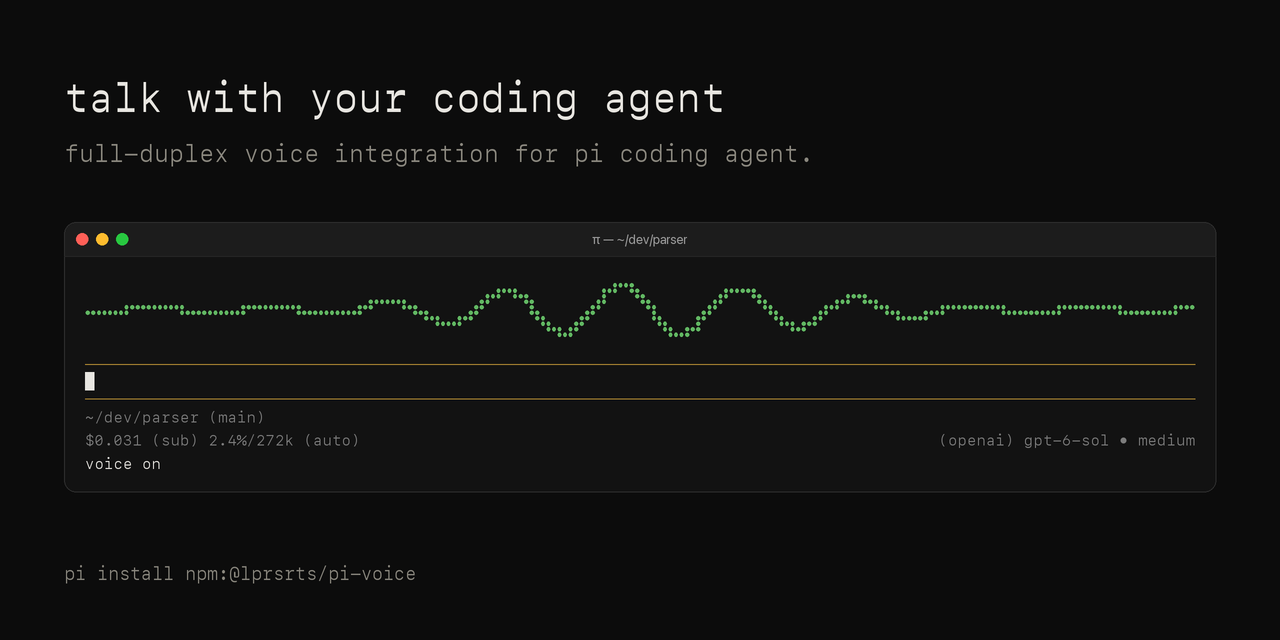
pi-voice lets you talk to Pi, the terminal coding agent, out loud. You say what you want, Pi does the work in your terminal, and a voice tells you what happened. The goal is to use Pi without touching the keyboard. It runs on macOS. (Why I built it.)
The voice is OpenAI's GPT-Live, a realtime speech model. It listens while it talks, so you can cut in mid-sentence and it stops to hear you. When you ask for something that needs real work, GPT-Live passes what you said to your Pi session as an ordinary message. Pi handles it with the model you picked (/model), its tools and whatever extensions you run, the same as if you had typed it, and the request shows up in the session. When Pi is done, the voice reads you the result.
While Pi works you can keep talking: add to the request, or say "stop" to cancel it. If you stop voice in the middle of a task, /talk start picks the session up where it is, and a result that came in while voice was off gets read out then.
You can use your Mac's speakers. Echo cancellation keeps the voice from hearing itself, so headphones are optional, and switching audio devices mid-session (AirPods connecting, say) doesn't interrupt anything.
If you only want local speech-to-text into Pi's editor, use the official @earendil-works/pi-voice instead. The two can be installed side by side; this package's command is /talk.
Quick start
- Install:
pi install npm:@lprsrts/pi-voice - Add your OpenAI API key (see API key).
- In Pi, type
/talk(or press Alt+V). The same again stops it.
The first start takes a little longer (up to ~40 s) while the audio helper is built, and macOS asks once for microphone permission.
Requirements
- macOS 14+, Pi, Node 24+.
- Xcode Command Line Tools (
xcode-select --install). - An OpenAI API key with billing (GPT-Live).
Cost
The package is free (MIT). Two things cost money. The voice is GPT-Live at $0.05 a minute, billed to your OpenAI API key. A ChatGPT plan doesn't cover it, because OpenAI rejects plan sign-ins for GPT-Live. The work costs whatever your Pi model costs, exactly as when you type: Pi uses your configured provider, and no extra model runs in between.
GPT-Live bills per second while a voice connection is open, whether anyone speaks or not. To avoid paying for silence, voice pauses by itself: after 15 s of silence while Pi works (it comes back to say the result), or 60 s of silence when nothing is running (/talk start resumes); both are settings. /talk mute keeps the connection open (and billable); /talk stop ends it. A result that arrives while voice is off is said at the next /talk start.
Limits
It runs on macOS only (14 or later), because the audio helper is built on Apple's voice processing. The voice is GPT-Live, so you need an OpenAI API key with billing, and what you say goes to OpenAI while voice is on.
The microphone is open the whole time voice is connected. Mute it with Alt+M (or /talk mute) when you're not talking to it. Starting and stopping voice still takes the keyboard: /talk or Alt+V.
The voice can't answer prompts in the terminal. When Pi or one of its extensions stops to ask you something, the voice says it is waiting for you, and you answer it at the keyboard.
How it works
When GPT-Live decides your request needs real work, it hands it off, and pi-voice sends what you said to Pi as a message. While Pi works, its progress reaches the voice silently, so the voice knows where the work stands without interrupting Pi. Saying something else adds to the running task, and "stop" or "cancel" stops it. When Pi finishes, the voice says the result. The voice and Pi are one agent: it talks about the work as its own ("I'm running the tests"), and each /talk start picks up where the session is (recent requests and answers, and any task still running, whose result it will announce), so you can stop and restart voice mid-task. While a voice session runs, Pi is told that its answers are spoken, so it ends with a short, speakable summary.
While voice runs, a bar sits above the input; you can keep typing. What you say to the voice and what it says back play in the chat as they are said, flipping in like a split-flap board, and look like the rest of the conversation: your words like a typed message, as they are recognized, and its replies like Pi's, in step with the audio.
When a turn is over, it settles in place and becomes part of Pi's conversation: Pi's model sees it as context (never as a request), so it knows what you and the voice discussed. A reply you talked over keeps only the part you heard, ending in "…". A request handed to Pi shows once, as what you said, in Pi's own message; it carries only what Pi's conversation lacks (what was said while Pi worked). What is said while Pi works (the voice's progress remarks, acknowledgements, status questions) is not shown or kept, since Pi's own messages cover it.
When Pi finishes a voice request, the voice reads the answer out, and the read-out takes the place of Pi's written answer in the chat, playing in as it is said. Pi's written answer sits above it, collapsed like a thinking block: click Written answer (or press Ctrl+O) to open it, and click again to close it. Answers that only work on screen (code blocks, lists, tables, headings, or more than a few sentences) stay as Pi's text. Until the read-out starts, or if it never does (voice stopped before the result was said), Pi's text shows in its place. Pi's model always keeps its own answer; the read-out is shown, not added to the conversation. Everything kept is saved in the Pi session, so it comes back when you resume.
The voice bar
The bar above the input is one beam, and each of its properties means one thing: colour is who owns the moment (you, the voice, Pi), height is energy, density is pitch, and drift is where things are flowing: leftward while you talk (into the voice), rightward while the voice talks or Pi works (back to you). A sway is presence without flow; a frozen trace means nothing can go in.
| State | When | Looks like |
|---|---|---|
| connecting | Opening a connection | The beam grows from flat and starts to move |
| listening | Open and quiet | A faint breath that settles into stillness |
| hearing | You are talking | Your voice drives it, drifting left |
| working | Pi is working | Steady amber drift right, a beat for each tool call |
| speaking | The voice is talking | Its audio drives it, drifting right |
| muted | Microphone off | The trace breaks into dashes and holds still |
| paused | Auto-paused (or idle) | Flat and dim, with a slow pulse |
| error | Something failed | A short red flinch, then back to the state |
Moments have their own motion: a request handed to Pi sweeps toward the work, a turn landing in the chat ripples at the centre, and when you talk over the voice it yields at once. The bar only redraws while something moves. /talk preview story plays it all; the reducedMotion setting keeps the colours and shapes but stops the motion.
Commands
| Command | What it does |
|---|---|
/talk |
Start voice, or stop it if it is running. |
/talk start |
Start a voice session with this Pi session as the backend, or resume it after a pause. |
/talk stop |
End the voice connection. A Pi task keeps running; its result is said at the next /talk start. |
/talk mute [on|off] |
Stop or resume the microphone; no argument toggles. /talk unmute also resumes it. |
/talk check |
Show setup status: audio helper, devices, API key, Pi's backend model, settings, shortcuts. No network or microphone use. |
/talk devices |
Show the input and output in use (the macOS defaults). |
/talk tone [20-20000] |
Play a test tone (440 Hz by default). |
/talk mic-test [1-10] |
Record a short clip (3 s by default), report its level, and play it back. Nothing leaves your Mac. |
/talk preview [story|cycle|state|off] |
Preview the voice bar without a session: story (default) plays every state and event with what it means; cycle steps through the states; or hold one: connecting, listening, hearing, working, speaking, muted, error, paused. |
/talk help |
List the commands and shortcuts. |
Tab completes subcommands and their values. While voice is in use, Pi's footer shows voice on, voice muted, or voice paused, and how many results are waiting to be said.
Shortcuts
| Action | Default | Does |
|---|---|---|
pi-voice.toggle |
alt+v |
Start or stop voice, like /talk. |
pi-voice.mute |
alt+m |
Mute or unmute the microphone. |
Change them in Pi's keybindings.json (~/.pi/agent/keybindings.json), next to Pi's own actions, then run /reload. Use a key or a list of keys; [] turns a shortcut off:
{
  "pi-voice.toggle": "ctrl+shift+v",
  "pi-voice.mute": []
}
On macOS, Alt shortcuts need your terminal to send Option as Meta (iTerm2: Profiles → Keys → Left Option key: Esc+; Terminal: Settings → Profiles → Keyboard → Use Option as Meta key; Ghostty: macos-option-as-alt = true). Otherwise Option+V types √.
API key
Set OPENAI_API_KEY, or store the key in your login keychain as openai-api-key (the environment variable wins if both exist). OpenAI keys are too long for the security prompt, so copy the key, then run:
security add-generic-password -U -s "openai-api-key" -a "$USER" -l "OpenAI API key" -w "$(pbpaste)" && pbcopy </dev/null
pi-voice reads the key only from these two places, not from Pi's own /login. Pi's Sign in with ChatGPT login (a choice under /login openai) does not replace the key: OpenAI refuses that login's token for GPT-Live (ADR-0007). If you have it and no key, /talk check and /talk start say so.
Keys are read only when a session starts and are never logged. While voice is on, your microphone audio goes to OpenAI's GPT-Live. pi-voice never saves audio. What you and the voice say is kept in the Pi session, like typed messages, so it comes back when you resume; pi-voice writes nothing else.
Settings
Put a "pi-voice" object in Pi's settings.json (~/.pi/agent/settings.json, or a project's .pi/settings.json, which overrides it). Any setting can also be set with its environment variable, which wins over the file. /talk check shows each value and where it came from.
{
  "pi-voice": {
    "autoPause": 15,
    "idlePause": 60,
    "echoCancellation": true,
    "reducedMotion": false
  }
}
| Setting | Environment variable | Default | Effect |
|---|---|---|---|
autoPause |
PI_VOICE_AUTOPAUSE |
15 |
Seconds of silence while Pi works before voice pauses (it comes back with the result). 0 = never. |
idlePause |
PI_VOICE_IDLE_PAUSE |
60 |
Seconds of silence while nothing runs before voice pauses (/talk start resumes). 0 = never. |
echoCancellation |
PI_VOICE_AEC |
true |
Apple's voice processing. Turn off only with headphones, or the agent hears itself. |
reducedMotion |
PI_VOICE_REDUCED_MOTION |
false |
Still shapes and colours instead of motion: the bar does not drift or pulse, and words appear in the chat without flipping in. |
PI_VOICE_CONFIG_DIR sets where your voice and persona overrides live (see below).
Voice and persona
The backend model is Pi's: switch it with /model as usual. For the voice, put files in ~/.pi/agent/pi-voice/openai-live/ (under $PI_CODING_AGENT_DIR if you set it, or $PI_VOICE_CONFIG_DIR/openai-live/). /talk check shows the directory.
session.json: only the top-level keys you set change. To pick a voice, use{ "voice": "<built-in voice name>" }, or a custom voice:{ "voice": { "id": "voice_…", "description": "<its design prompt>" } }.instructions.md: replaces the voice persona and its rules for handing work to Pi.
The defaults are in providers/openai-live/.
Troubleshooting
- The agent hears itself and loops: make sure echo cancellation is on (
/talk check; theechoCancellationsetting orPI_VOICE_AEC). - No sound: run
/talk toneand check the output in Sound settings. - The agent never hears you: run
/talk mic-test. Below about -40 dBFS means the wrong input device or no microphone permission. Another app holding the mic (e.g. a call) can also block it. - Bluetooth sounds bad: using AirPods as the microphone lowers their audio quality. Use the Mac's microphone for input and AirPods for output.
Development
git clone https://github.com/lprsrts/pi-voice && cd pi-voice
npm install   # Pi's packages (peer dependencies), needed by the tests
npm test
pi -e .   # run Pi with your checkout (pi remove the npm package first)
node scripts/live/run.mjs all --quiet   # live scenarios: real GPT-Live and Pi (costs a little; see scripts/live)
Issues and pull requests are welcome; see CONTRIBUTING.md. Changes are listed in CHANGELOG.md.
License
MIT