@bitmonkey/pisim1.0.1
Pi extension: watch and drive a booted iOS Simulator from a herdr pane, and let the agent see, tap and type into it
Untested on omp
This is a pi package. No one has reported whether it works on omp yet. If you try it, add your result below.
Reports 0
No reports yet.
Readme
pisim
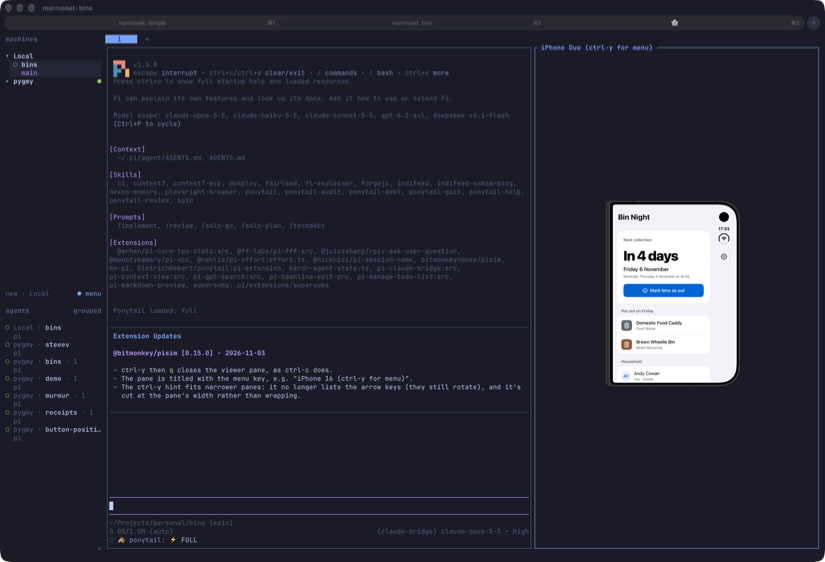
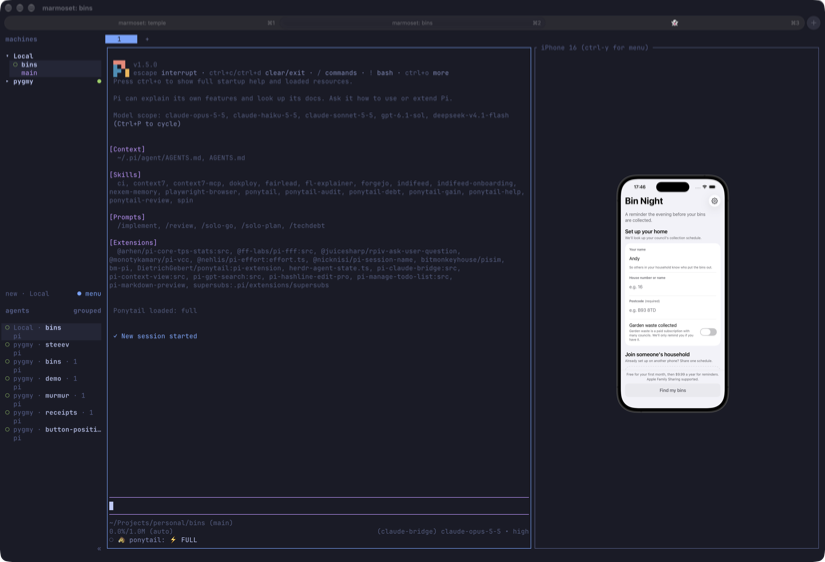
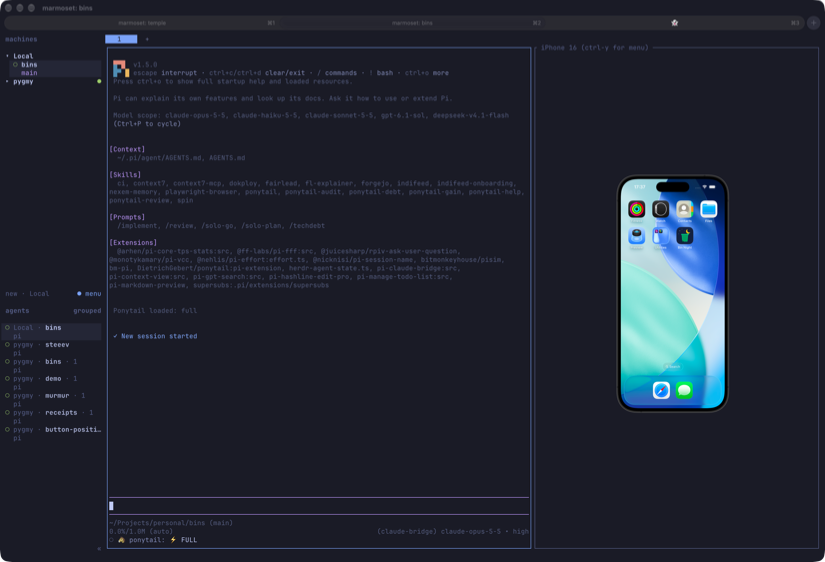
A pi extension for iOS development: show a booted iOS Simulator inside a herdr pane and drive it with your mouse and keyboard, and give the agent tools to see the simulator's screen, tap, type, press buttons and launch apps.
/simopens the simulator in a pane next to pi, in its device bezel. The pane updates only when the screen changes (no CPU while it's still) and runs at the simulator's frame rate while it moves.- Click to tap, drag to swipe or scroll, type to type. Input lands in about 0.1 s.
- The agent gets
sim_screenshot,sim_describe,sim_tap,sim_type,sim_button,sim_fold,sim_launchandsim_open_url.
Requirements
- macOS with Xcode 27 or later. Input uses Xcode 27's simulator HID service; tested with Xcode 27.1 and iOS 26.2, 27.0 and 27.1 simulators.
- A booted iOS simulator.
- For the
/simviewer: pi running inside herdr, in a terminal that supports the Kitty graphics protocol, such as Ghostty, kitty or WezTerm. The agent tools work without herdr.
There is nothing else to install. The extension builds a small native helper with Xcode's clang the first time it needs it.
Install
pi install npm:@bitmonkey/pisim
or from git:
pi install git:github.com/bitmonkeyhouse/pisim
The viewer
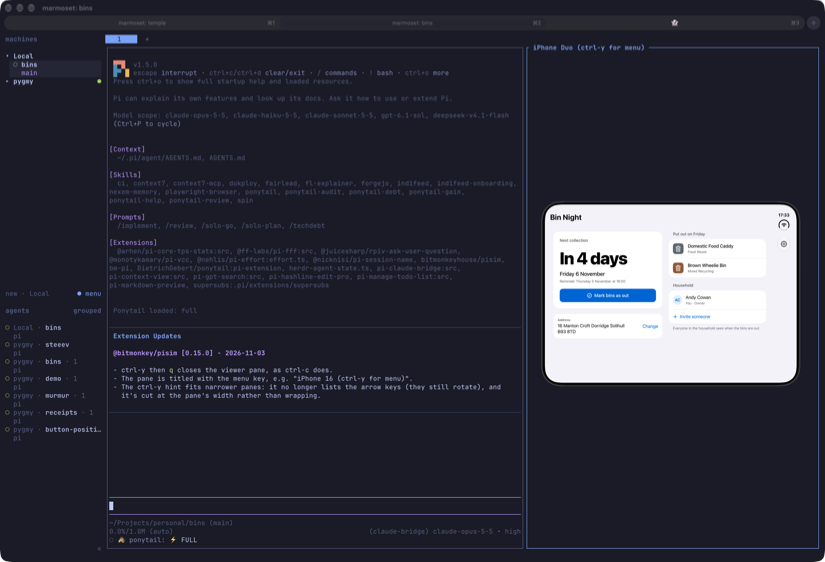
Run /sim in pi, optionally with a simulator's name or UDID (/sim iPhone 16). With several booted and no name given, pisim asks which one. With none booted, it lists your iOS simulators, newest runtime first, and boots the one you pick (without opening Simulator.app). It splits your herdr pane and shows the simulator on the right at its real physical size, as Simulator.app's Physical Size, worked out from the dimensions of the display the terminal is on; move the window to another display and it resizes to match. If the pane is too small for that, the device shrinks to fit. When the device turns or a foldable opens and no longer fits, the pane widens, and goes back to its old width once the device fits again (unless you've resized it yourself in between, or zoomed with ctrl-y z).
Watching over a herdr remote connection: herdr sends every frame to a remote client as raw pixels, which at full quality is hundreds of MB/s and slows the whole herdr window. When a herdr client is connected to the machine running pi over SSH, the viewer switches to lean mode: frames at half resolution and at most 10 a second, about a thirtieth of the data. ctrl-y b switches lean mode on or off by hand.
| In the pane | Does |
|---|---|
| Click | Tap |
| Drag | Swipe or scroll; long-presses and flicks work too |
| Type | Types into the focused field; Enter, Backspace, Tab, Esc and arrows work |
ctrl-y, then h / l / s / + / - |
Home, Lock (again to wake), Siri, volume up / down |
ctrl-y, then r or → / ← |
Rotate the device clockwise / anticlockwise |
ctrl-y, then z |
Zoom to fill the pane, or back to actual size |
ctrl-y, then o / c / p / f |
On a foldable (iPhone Duo): open, close, half-fold, or toggle open and closed |
ctrl-y, then b |
Lean mode on or off (see below) |
ctrl-y, then q, or ctrl-c |
Close the pane |
Click the pane first so it has your keyboard. The scroll wheel goes to herdr, not the simulator, so drag to scroll. Typing follows the simulator's hardware keyboard layout: US, or British for en_GB simulators.
Agent tools
Every tool takes an optional device (name or UDID). Without it, the tools use the simulator opened with /sim, or the only booted one.
| Tool | Does |
|---|---|
sim_screenshot |
Returns the screen as an image |
sim_describe |
Lists the on-screen accessibility elements, one per line: type, label, id, value and frame in points |
sim_tap |
Taps an element by accessibility label or id (waiting up to 3 s for it), or a point x,y in points |
sim_type |
Types text into the focused field |
sim_button |
Presses home, lock, siri, volume-up or volume-down |
sim_fold |
Folds an iPhone Duo open, closed or partial, and waits until the matching display is in use |
sim_launch |
Launches an app by bundle id, optionally restarting it |
sim_open_url |
Opens a URL or deep link |
How it works
The TypeScript side is the pi extension (index.ts), the viewer that runs in the herdr pane (viewer.ts) and the bezel layout (bezel.ts). The native side is one Objective-C file, simhelper.m, built into a simhelper binary next to it on first use:
hidkeeps one connection open to the simulator's input service (dtuhidd) and sends touches, keys and buttons. A fresh connection costs about 0.5 s; this one is opened once.videofollows the simulator's display buffer and its frame callbacks, scales each new frame on the GPU with Metal, and hands it to the terminal as raw pixels through the Kitty graphics protocol. It does nothing while the screen is still.describereads the accessibility tree on the Mac, as Simulator.app does.bezelrenders the device frame from Xcode's DeviceKit artwork.
These use private Apple frameworks (CoreSimulator, AccessibilityPlatformTranslation), as other simulator automation tools do, so a future Xcode may break them.
Limitations
- Single touch only: no pinch or two-finger gestures. Long hardware button presses aren't supported.
- Only US and British keyboard layouts are mapped; characters outside the layout (é, emoji) can't be typed.
- Tested on iPhones and the iPhone Duo. The viewer and the agent tools follow whichever of the Duo's displays is lit; Xcode only has a bezel for the outer one, so the inner one gets that frame stretched to fit.
- The viewer starts the device in portrait. While it's rotated,
sim_tapbyx,yor by label taps in the wrong place: the agent tools don't know the device has turned.
Credits
simhelper follows the approach of Meta's idb (MIT) for the simulator's input connection, framebuffer and accessibility; see NOTICE.
Licence
MIT. See LICENSE.