pi-markdown-preview0.23.0
Rendered markdown + LaTeX preview for pi, with terminal, browser, and PDF output
Works on omp
1 of 1 report says this package works on omp.
1 works0 broken
Reports 1
- works
Automated load test on omp 18.12.3: `omp plugin install` succeeds and the package loads with no errors. It adds commands /preview, /preview-browser, /preview-clear-cache, /preview-pdf; tools preview_export. Runtime behavior was not exercised.
Readme
pi-markdown-preview
Preview assistant responses and local Markdown, LaTeX, code and diff files from pi in the terminal, in the browser or as PDF, with math, syntax highlighting, Mermaid diagrams and colours from your Pi theme. A browser preview can also follow each turn live, showing prompts, tool calls and results as Pi records them.
Screenshots
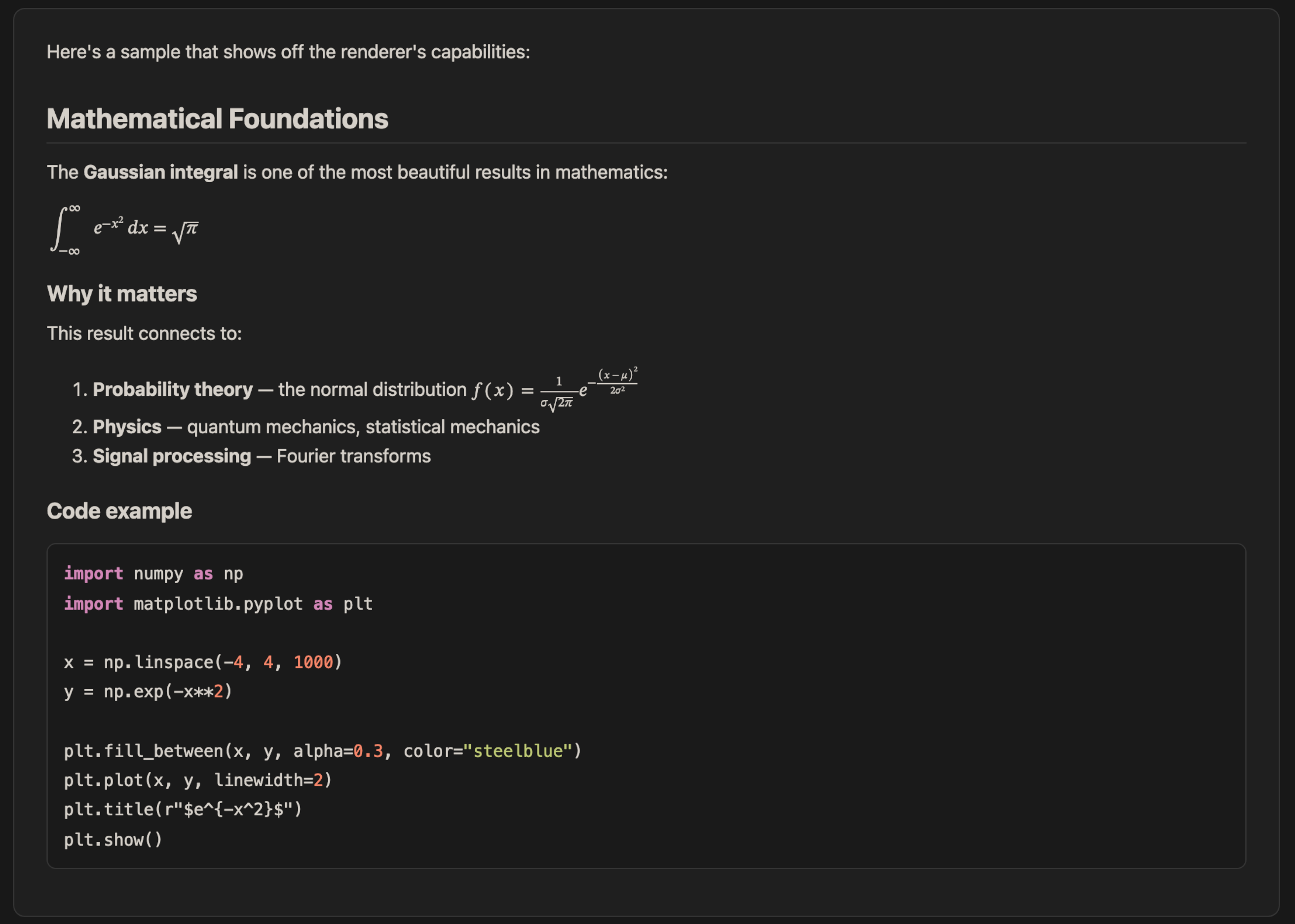
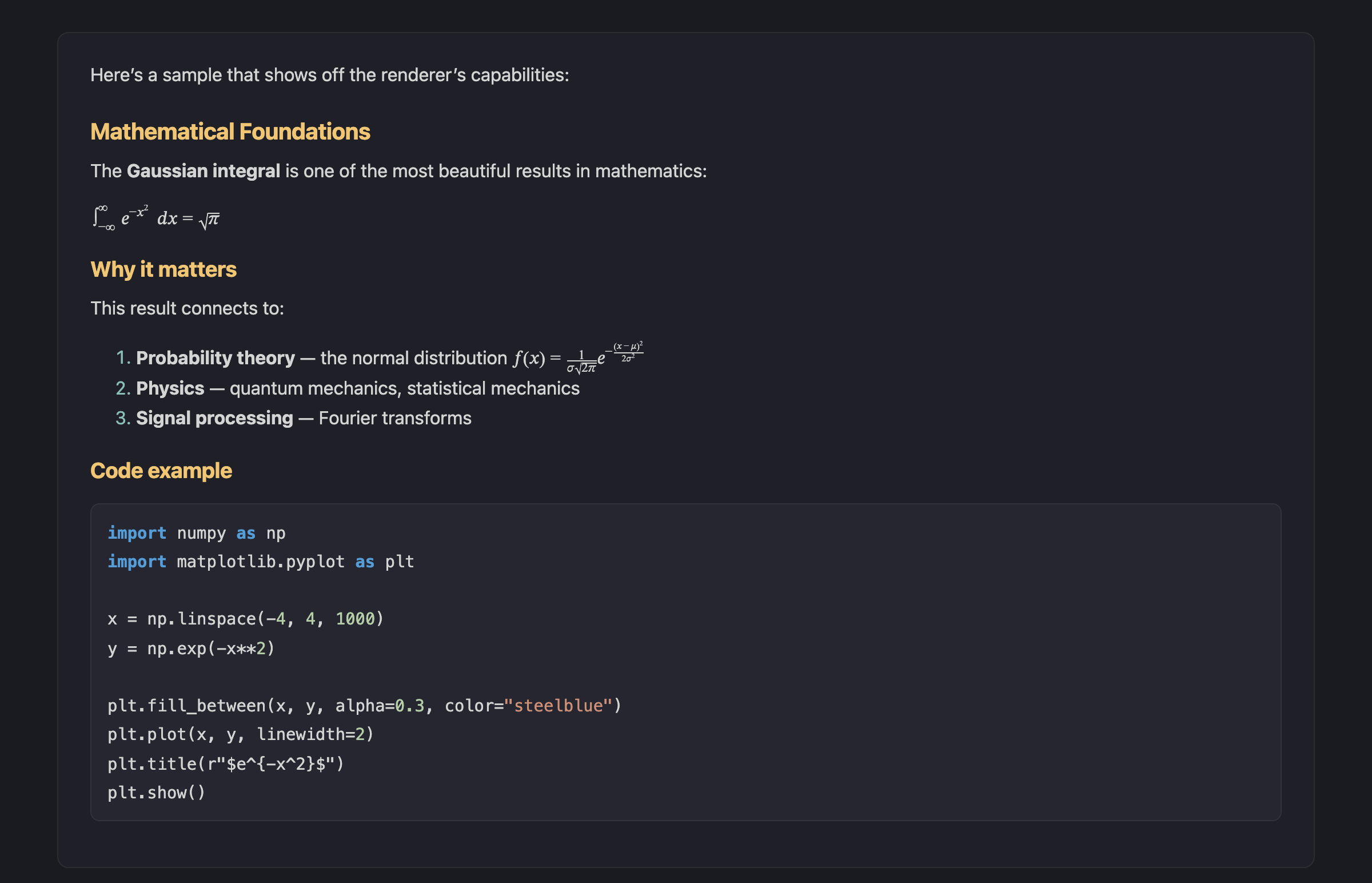
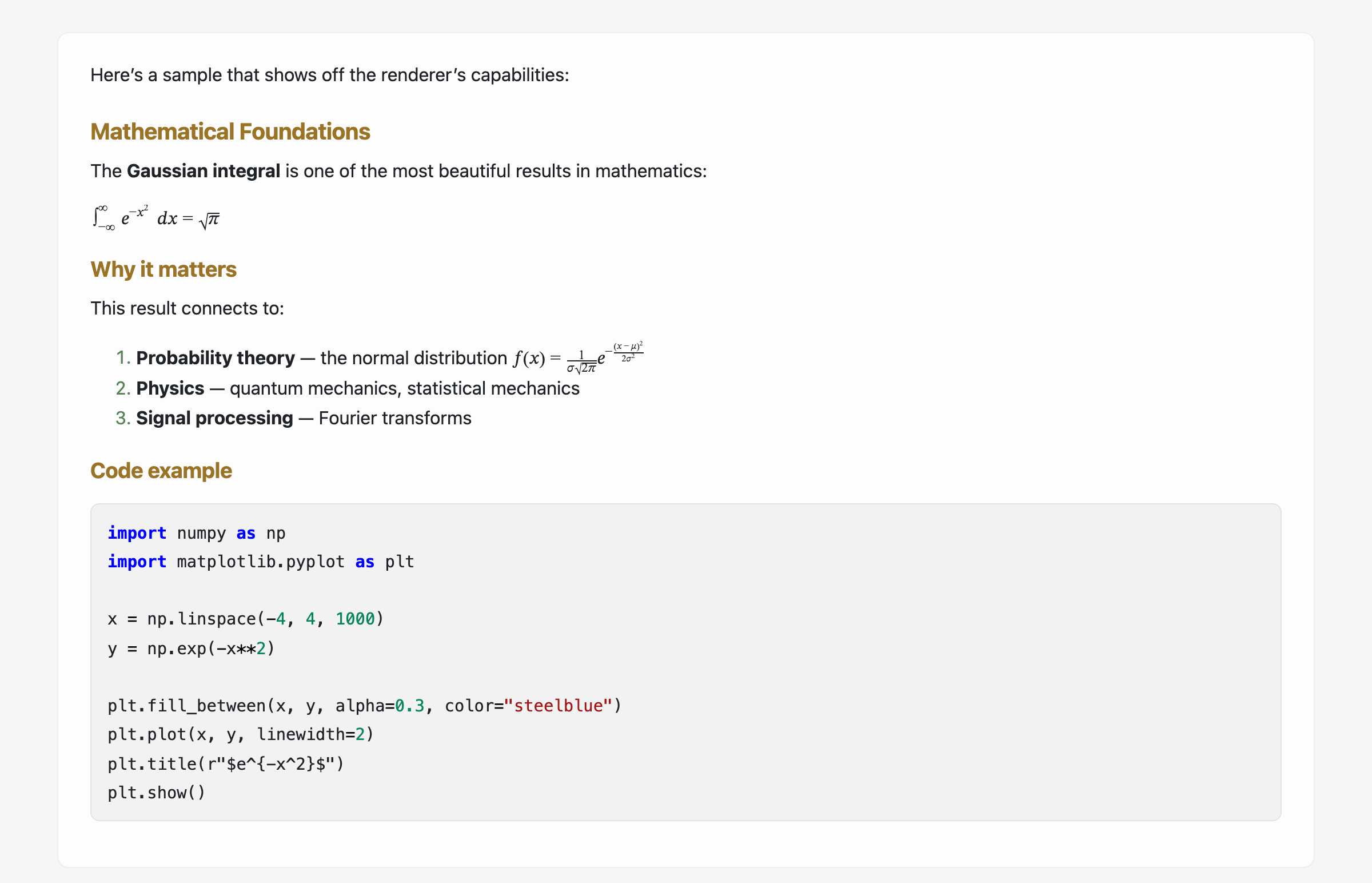
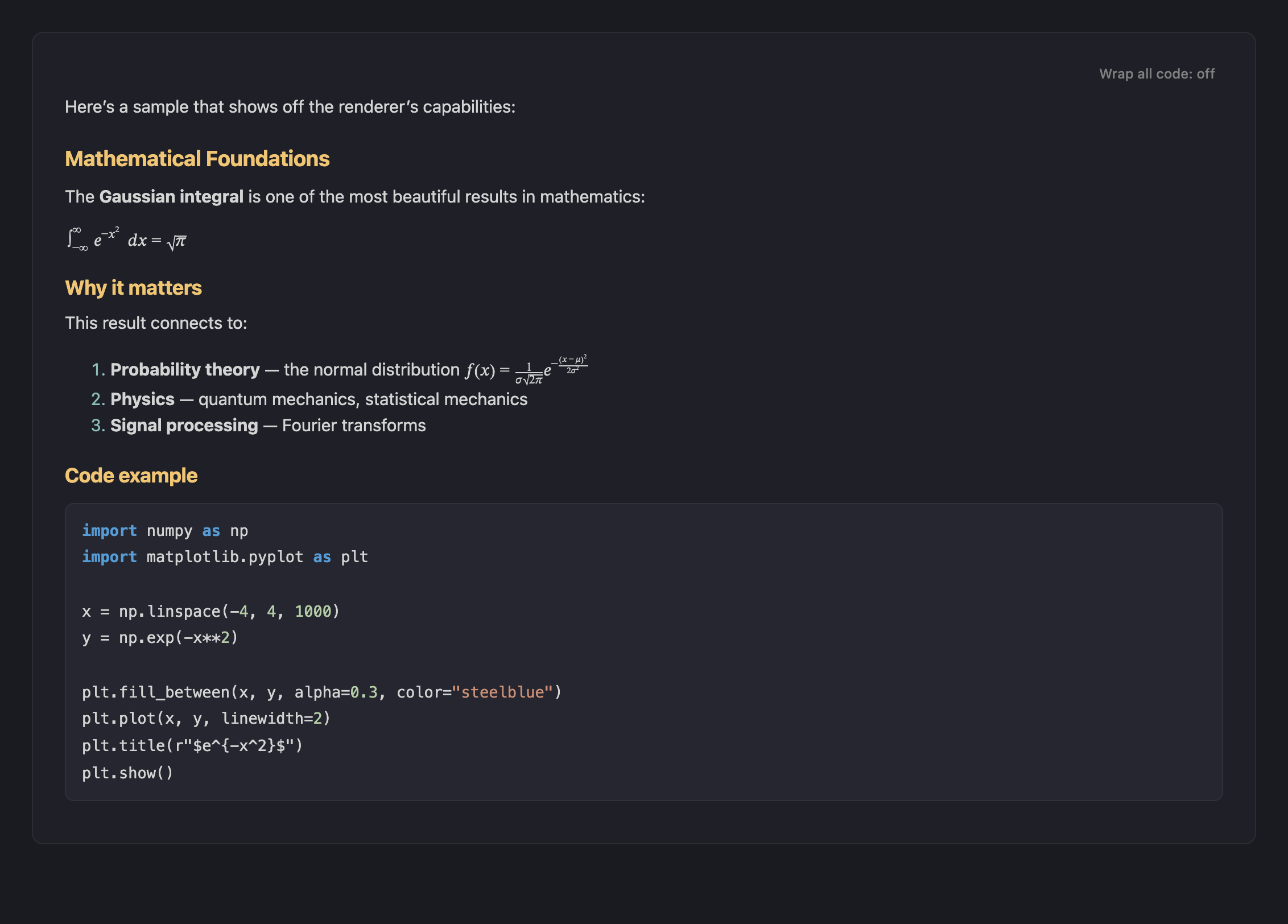
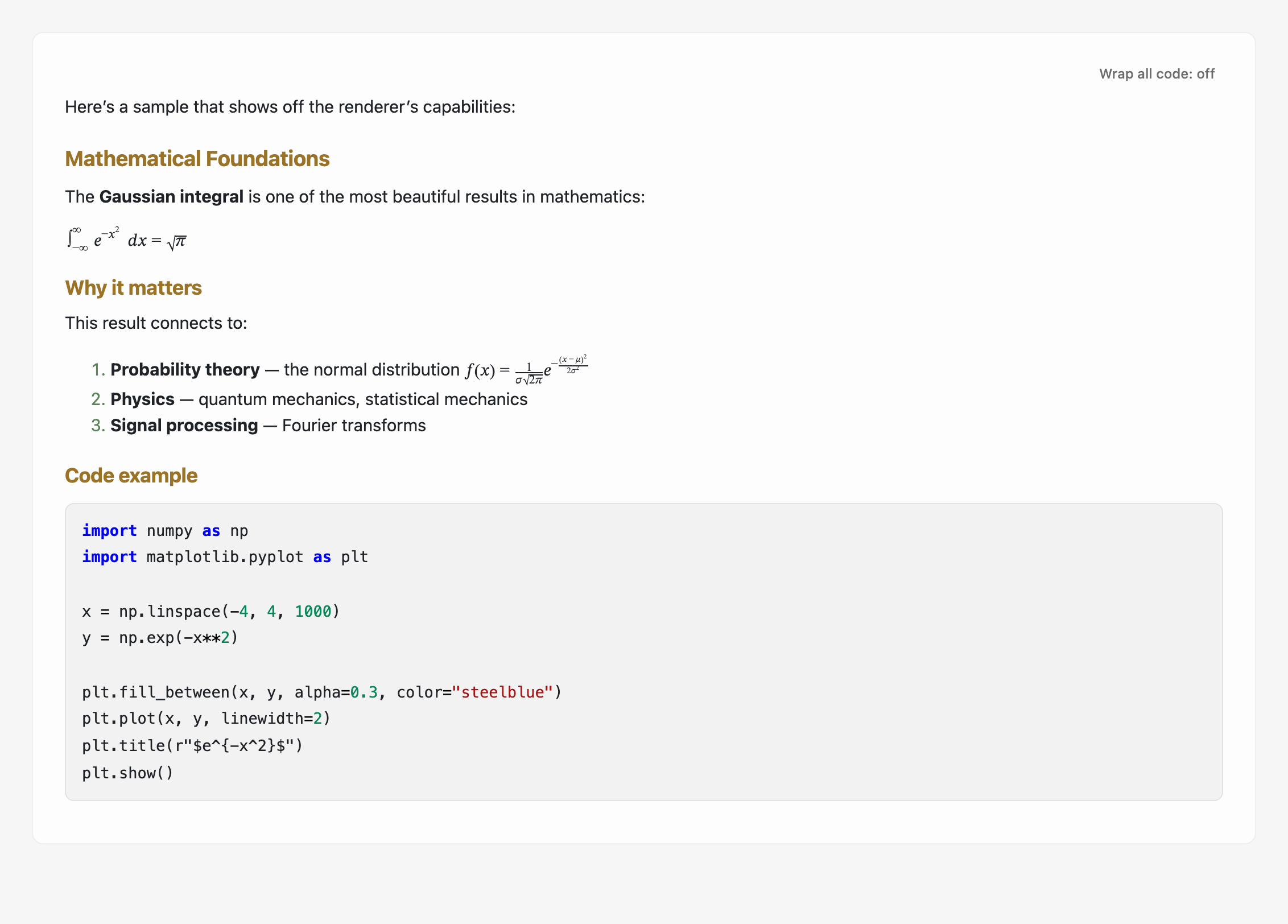
Previews follow your Pi theme. Examples with a custom theme and the built-in defaults:
Terminal preview (custom theme):
Terminal preview (default dark):
Terminal preview (default light):
Browser preview (default dark and light):
| Default dark | Default light |
|---|---|
 |
 |
Install
pi install npm:pi-markdown-preview
Or install from GitHub with pi install https://github.com/omaclaren/pi-markdown-preview, or try it without installing with pi -e https://github.com/omaclaren/pi-markdown-preview.
You need Pandoc (brew install pandoc on macOS). Terminal previews also need a Chromium-based browser (Chrome, Brave, Edge or Chromium) and a terminal that can show images (Ghostty, Kitty, iTerm2 or WezTerm). PDF export needs a LaTeX engine such as TeX Live (brew install --cask mactex on macOS, apt install texlive on Linux), and Mermaid diagrams in PDF need Mermaid CLI (npm install -g @mermaid-js/mermaid-cli). PDF icon nodes require Mermaid CLI 11.6+.
Previews load Mermaid, the MathJax fallback, Mermaid icon packs and PDF.js from jsDelivr or unpkg the first time a page needs them, so those features need network access.
Quick start
/preview shows the latest response in the terminal. To keep a browser tab alongside the session, run:
/preview-browser --live
The tab shows each response when Pi finishes it, with earlier responses a click away. Working, beside each response, shows the prompts, tool calls and results that led to it. Turn on Follow activity in the toolbar (or press Ctrl+Alt+A) to watch each turn in Working as it runs; when the turn finishes, the page returns to the response. With Follow activity off, the tab updates after each turn.
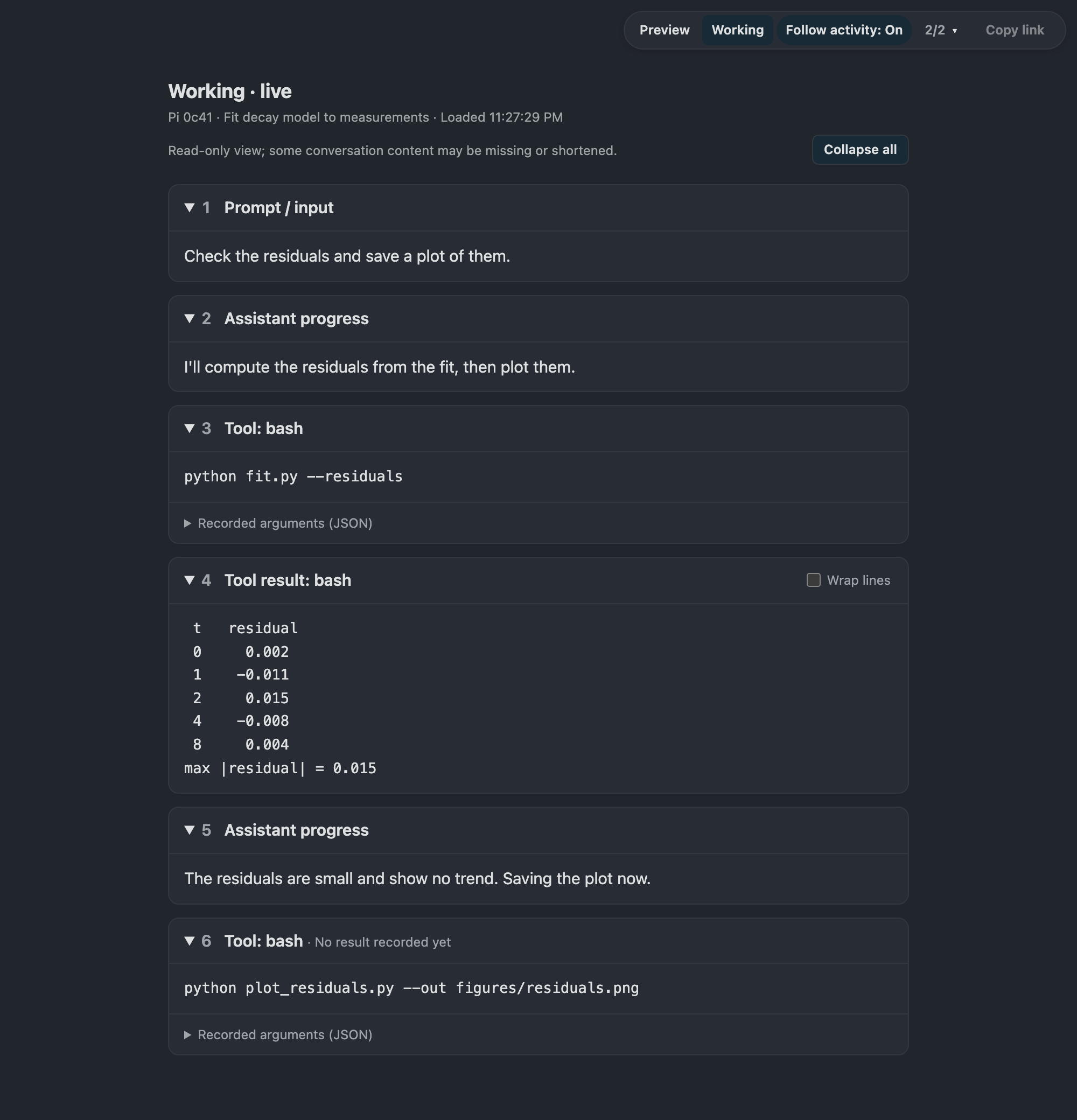
Working shows recorded prompts and tool output to anyone with the tab's link. For responses only, use /preview-browser --watch instead.
Usage
| Command | Description |
|---|---|
/preview |
Preview the latest response in the terminal |
/preview --pick |
Choose from all assistant responses |
/preview <path/to/file> |
Preview a Markdown, LaTeX, diff or code file |
/preview --file <path/to/file> |
The same, for dash-prefixed or reserved filenames |
/preview --browser (-b) |
Open in a cmux browser split when available, otherwise the system browser |
/preview --font-size 14 |
Font size in px (defaults: terminal 16, browser 15) |
/preview --pick --browser |
Choose a response and open it in the browser |
/preview-browser --live |
Browser tab that follows the session, with Working and Live |
/preview-browser --working |
The same without Live |
/preview-browser --watch (-w) |
Browser tab that updates after each response, without Working |
/preview-browser --watch <path> |
Browser tab that follows a file |
/preview-browser --watch --history 5 |
Start with up to 5 earlier responses (default 10, 0–20) |
/preview-browser |
One-shot browser preview |
/preview-browser <path/to/file> |
One-shot browser preview of a file |
/preview-browser --list |
List browser watchers |
/preview-browser --stop <path> |
Stop one file watcher |
/preview-browser --stop --responses |
Stop the response watcher |
/preview-browser --stop --all |
Stop every watcher in this Pi session |
/preview-browser --stop |
Stop the only watcher; with several running, name one |
/preview --pdf |
Export to PDF and open it |
/preview-pdf |
Shortcut for --pdf |
/preview --pdf <path/to/file> |
Export a file to PDF |
/preview-clear-cache |
Clear the preview cache |
/preview -b -w is the same as /preview-browser -w. Paths can be quoted. Other short forms and aliases are listed in details.
Live and Working
Working shows a response's recorded prompts, progress, any exposed reasoning, and its tool calls and results. Prompts start expanded and activity starts folded. Commands, file reads and edits have readable views, with the recorded JSON available, and recorded images can be enlarged. Ctrl+Alt+P and Ctrl+Alt+W (Control+Option on macOS) switch between Preview and Working.
With --live and Follow activity on, the page moves to Working when a turn starts and back to Preview when it ends. If you have scrolled up or moved to another page, it leaves you there. Updates arrive as Pi records each message, not token by token, so a tool call shows "No result recorded yet" until its result is recorded. Anything Live leaves out, such as cards beyond its display limits, is listed in its status line. Pi Studio has a fuller live view.
Privacy: prompts, tool output and recorded images can contain secrets, and nothing is redacted. Share these links only with people you trust. Working stays on until you stop the watcher. To start it with a fresh link, first stop any response watcher already running (/preview-browser --stop --responses).
Some content may be shortened or left out; details lists what Working reads and its limits.
Browser watch mode
A response watcher renders each response once Pi finishes it. It starts with the last 10 finished responses on the current branch and keeps up to 20. Step through them with Previous, Next and Latest in the current/total ▾ counter menu, with the browser's Back and Forward buttons, or with Option/Alt+Left/Right (add Shift for the oldest or latest). On an older response the page stays put and marks New when something arrives. For responses from before the watcher started, use /preview --pick --browser.
A file watcher re-renders when the file changes, keeps your reading position, and keeps the last good preview if a render fails.
Each Pi session can run up to eight watchers: one for responses and the rest for files. Running a command again for the same source reopens its watcher. Watchers stop with --stop or when the Pi session ends; a page whose watcher has stopped says it is disconnected.
The page drops its token from the address bar after the first load, so a copied address won't open in another browser. Use Copy link in the toolbar instead. Inside cmux, browser previews open as a split in the caller's workspace.
Links to local files
In a watched preview, links to local files open in the same tab, and Back returns you to where you were. Relative links in a response resolve against Pi's working directory, and links inside a file against the file's directory. Markdown, LaTeX, text and code open as rendered snapshots (refresh to reread them). Images, PDFs and HTML pages open in the browser, with HTML run in a sandbox. Other files and folders open a page with buttons to show them in their folder, open them in their default app, or copy the path. Each link also has Copy local path and ⋯ File actions beside it.
These actions run on the machine hosting the preview, and opening a file in its default app can run it. Anyone with a watcher's link can use them, so share the link only with people you trust. Details describes what a watcher serves.
Figures, cross-references and Mermaid icons
Local images and PDF figures resolve relative to the previewed file or, for responses, to Pi's working directory. Figure cross-references in Quarto syntax ({#fig-elephant} with @fig-elephant) or pandoc-crossref syntax ({#fig:elephant} with @fig:elephant) produce numbered captions and clickable Figure N references, for standalone captioned images and single references. No Quarto code is run; use Quarto itself for subfigures, filters or execution. <sup>/<sub> tags and Pandoc's ^1^ and ~2~ work, and HTML comments in Markdown are hidden. A <details> block with a <summary> collapses in the browser, as on GitHub, and is shown expanded in terminal images and PDF.
Mermaid icons
Mermaid flowcharts can use lucide:* and logos:* icons. Keep each icon declaration on one line:
flowchart LR
  source@{ icon: "lucide:file-code-2", form: "rounded", label: "Source", pos: "b", h: 56 }
  github@{ icon: "logos:github-icon", form: "rounded", label: "GitHub", pos: "b", h: 56 }
  source -->|publish| github
  classDef unchanged fill:#f8f9fa,stroke:#868e96,stroke-width:2px
  classDef changed fill:#f3f0ff,stroke:#7950f2,stroke-width:2px
  class source unchanged
  class github changed
Terminal preview and code wrapping
| Key | Action |
|---|---|
← / → |
Previous or next page |
r |
Re-render, bypassing the cache |
w |
Toggle code wrapping |
o |
Open in the browser |
Esc |
Close |
Code blocks start unwrapped so diagrams and aligned columns keep their layout. In the browser, Wrap all code (or Wrap in the counter menu) sets every block, and each block has its own Wrap and Copy buttons. PDF and PNG exports always use the unwrapped layout.
File export with preview_export
The extension registers a preview_export tool that Pi can call. It renders the latest response, supplied Markdown or LaTeX, or a local file to pdf, html or png (one file per page) and returns the paths, so another tool, such as a Telegram integration, can send them. Optional arguments are outputPath, fontSizePx, resourcePath and open. For example: "Make the last answer a PDF and send it to me."
Using it from other extensions
import {
  openPreview,
  openPreviewInBrowser,
  closeSharedPreviewBrowser,
} from "pi-markdown-preview";
openPreview(ctx, markdownOverride?, resourcePath?, isLatex?, fontSizePx?)opens the terminal preview.openPreviewInBrowser(ctx, markdownOverride?, resourcePath?, isLatex?, fontSizePx?)writes and opens the browser preview.closeSharedPreviewBrowser()closes the shared headless Chromium used for terminal and PNG rendering. You can call it from your ownsession_shutdownhandler; this extension already calls it when Pi shuts down, reloads or switches session.
Configuration
Set these before starting Pi:
| Variable | Effect |
|---|---|
PANDOC_PATH |
Pandoc executable, if it is not on your PATH |
PANDOC_PDF_ENGINE |
LaTeX engine for PDF export (default xelatex) |
PI_MARKDOWN_PREVIEW_PDF_TIMEOUT_MS |
Time limit for PDF export, in ms (default 120000) |
PUPPETEER_EXECUTABLE_PATH |
Chromium executable for terminal previews, instead of detecting one |
PI_MARKDOWN_PREVIEW_DEVICE_SCALE_FACTOR |
Screenshot density for terminal previews (default 2, range 1–2.5) |
MERMAID_CLI_PATH |
Mermaid CLI (mmdc), if it is not on your PATH |
MERMAID_PDF_THEME |
Mermaid theme in PDF: default, forest, dark or neutral |
PI_MARKDOWN_PREVIEW_REGISTER_EXPORT_TOOL |
0, false, no or off leaves out the preview_export tool |
Rendered previews are cached in ~/.pi/cache/markdown-preview/ (or under $PI_CODING_AGENT_DIR when that is set); /preview-clear-cache clears it.
License
MIT