pi-better-plan0.9.1
Structured execution plans with persistent progress for Pi.
Untested on omp
This is a pi package. No one has reported whether it works on omp yet. If you try it, add your result below.
Reports 0
No reports yet.
Readme
pi-better-plan
See what Pi is working on, what is done, and what comes next.
Install
pi install npm:pi-better-plan
Using the plan
Ask Pi to make a plan for your task. The checklist appears above the editor and updates as Pi works.
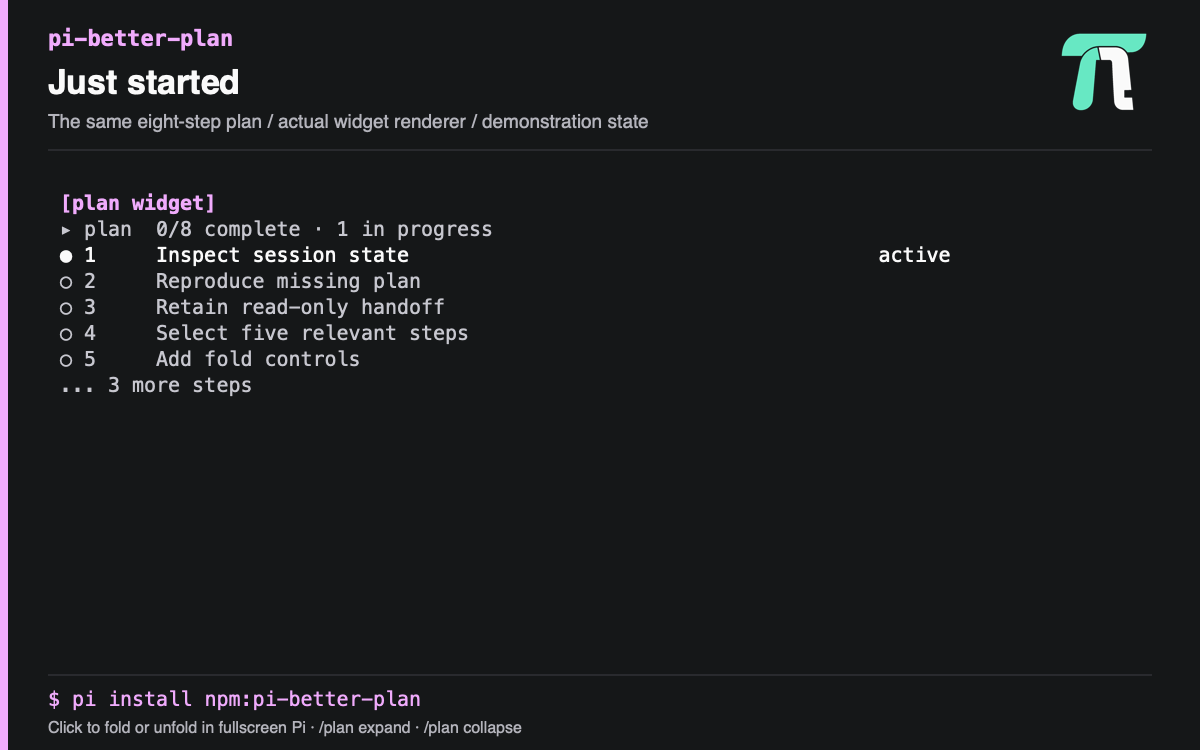
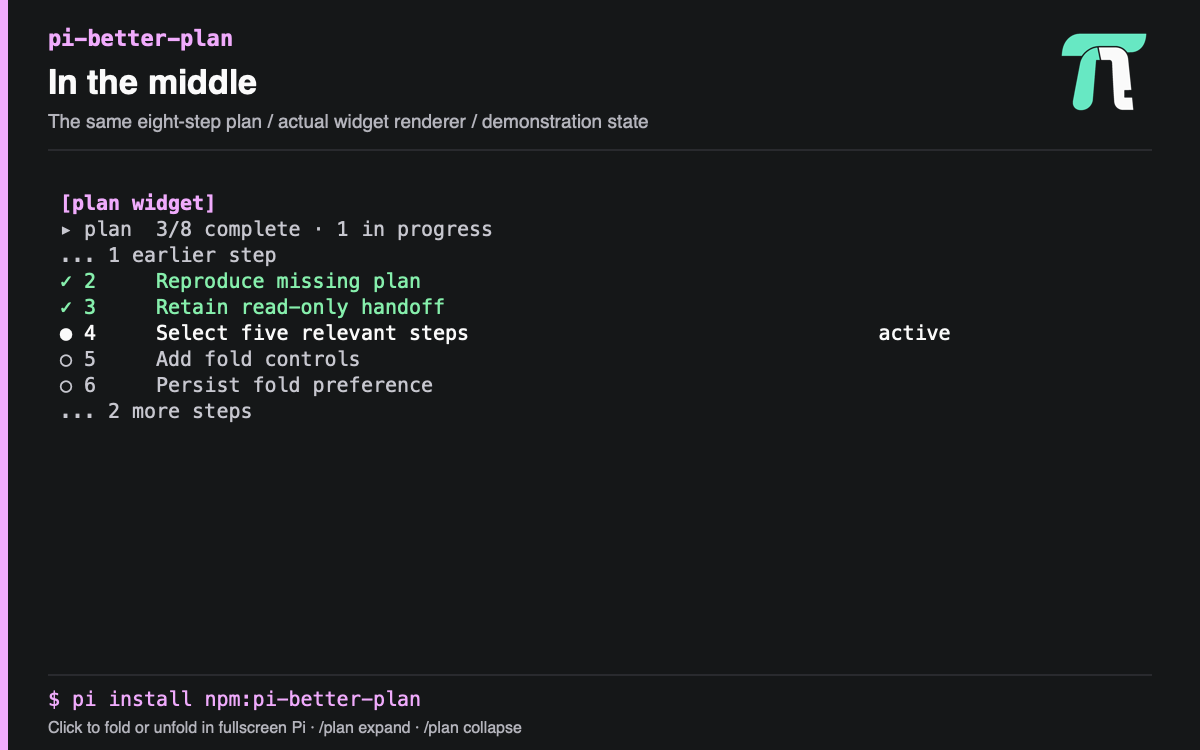
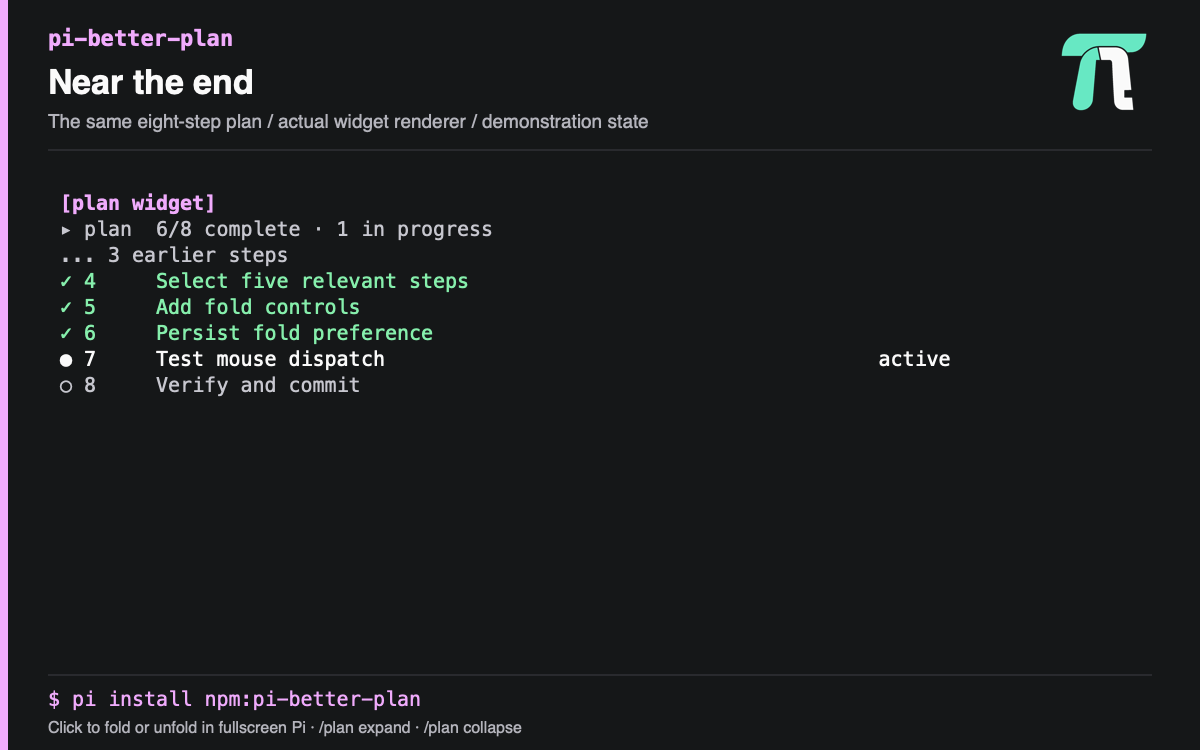
By default, you see up to five steps around the current work. The view starts at the beginning and moves toward the end as work progresses. Ellipses show how many steps are hidden; the progress count always covers the whole plan.
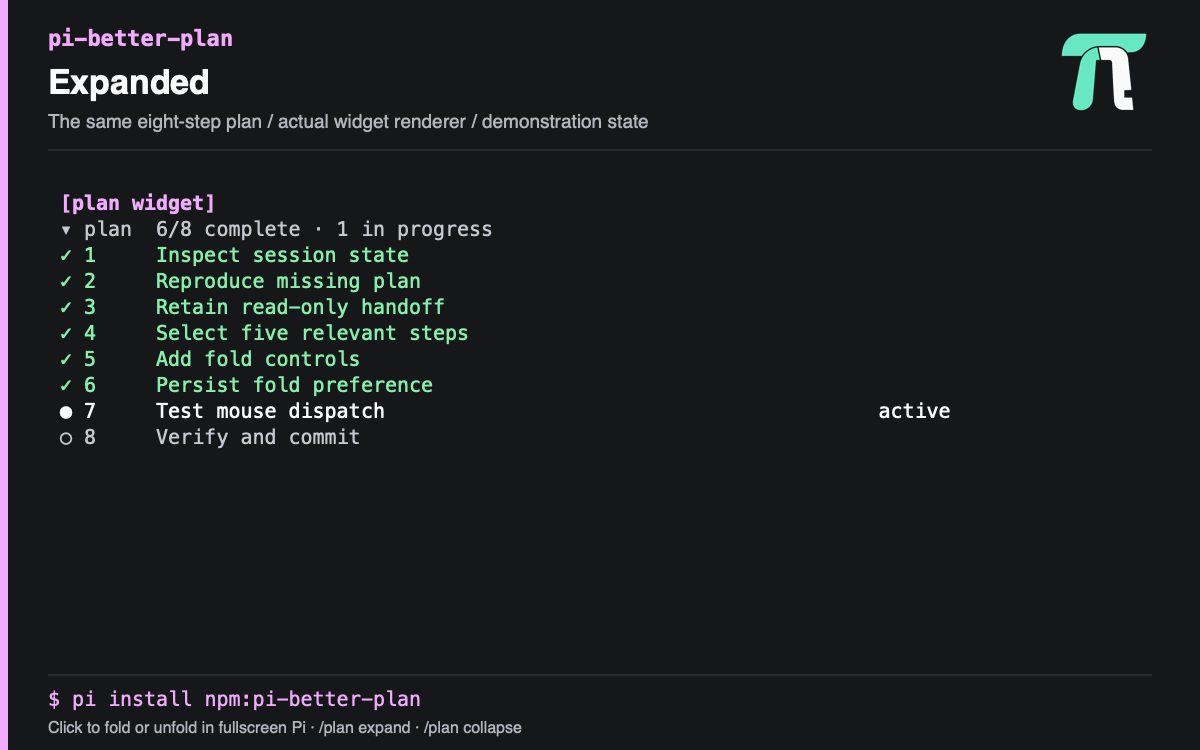
Click the plan to expand or collapse it in Pi's fullscreen mode. In regular terminal mode, use /plan expand or /plan collapse. For the full plan with details, run /plan.
Rows show ✓ for done, ● for active, ○ for pending, and ! for blocked. Pi marks steps complete explicitly; the count is not an estimate of effort. The completion count is completed items / total eligible items: canceled workflow items (cancelled or canceled) are excluded from the total, while skipped and not-applicable items remain in it. Canceled items remain visible for 30 seconds after the cancellation is first observed, then disappear from the widget and plan lists without deleting their workflow records. This delay survives session reloads; reactivating an item makes it visible again. An all-canceled plan shows 0/0 complete.
Your plan and display settings survive reload and follow the session branch. A completed checklist clears after 30 seconds. A released workflow plan stays visible for reference, but cannot be edited until the workflow resumes.
Examples
These images show the same eight-step plan, rendered by the actual widget with demonstration data.
Just started
The first five steps are visible.
In the middle
The active step has nearby context, with hidden steps counted on both sides.
Near the end
The view shifts to the last five steps.
Expanded
See every step. Click again or run /plan collapse to return to the compact view.
Commands
| Command | What it does |
|---|---|
/plan |
Open the full plan. Use Up/Down to select a step and Escape to return. |
/plan expand |
Show all steps above the editor. |
/plan collapse |
Return to the five-step view. |
/plan hide |
Hide the plan without deleting it. |
/plan show |
Show it again. |
/plan clear |
Remove the displayed plan. |
For developers
Pi uses update_plan to create or update a plan and get_plan to inspect it. Plans can include dependencies and work running in parallel.
See the technical reference for workflow integration, delegation rules, display settings, tests, and screenshot generation.