@yuriteixeira/pi-muxr0.4.4
tmux dashboard for Pi coding sessions
Untested on omp
This is a pi package. No one has reported whether it works on omp yet. If you try it, add your result below.
Reports 0
No reports yet.
Readme
Welcome to pi-muxr!
If you use Pi and is a die-hard Tmux user, maybe all you ever wanted from Herdr was its dashboard & navigation capabilities. Then, you came to the right place!
The pi-muxr extension provides:
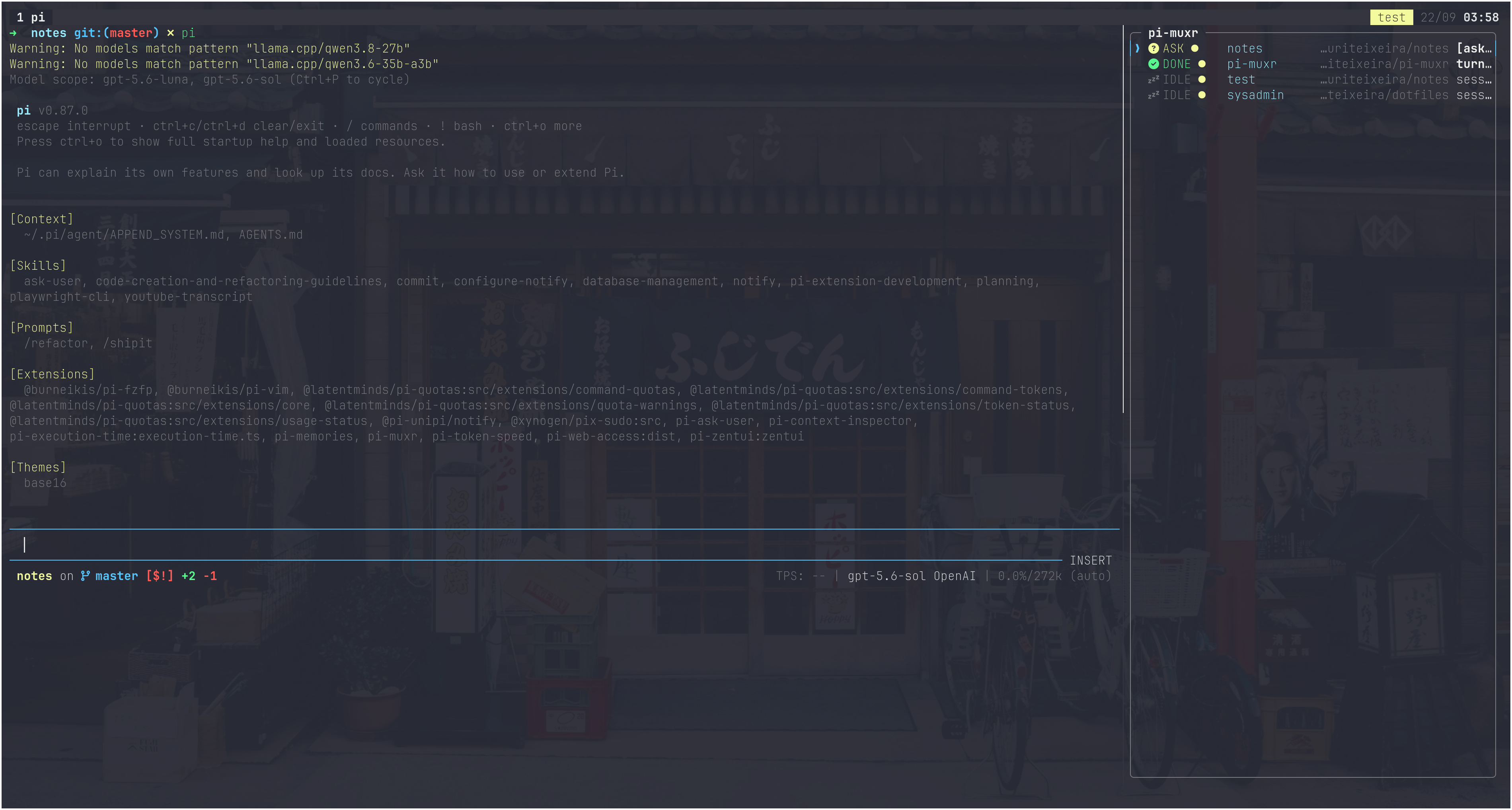
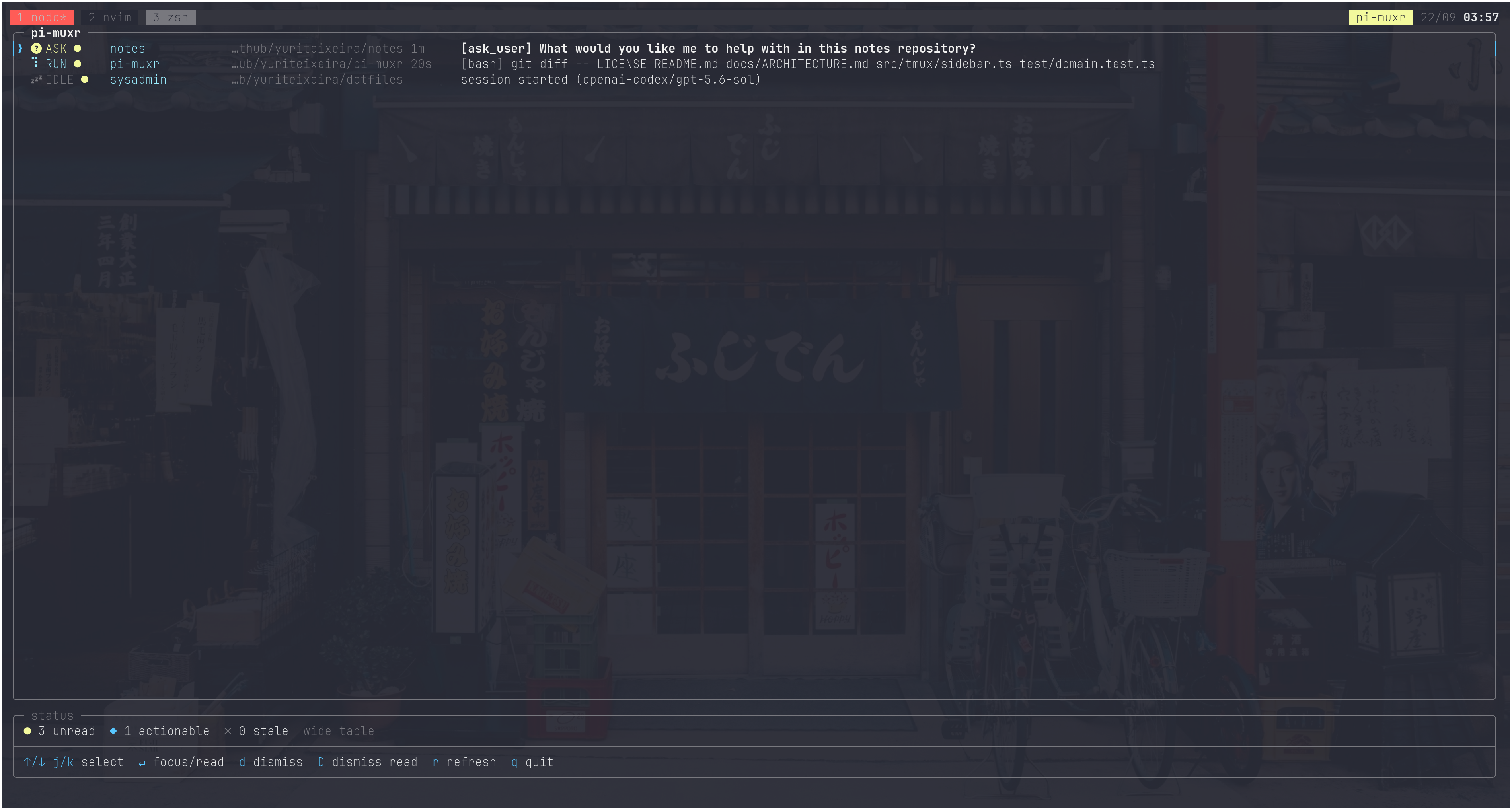
- A dashboard showing Pi sessions running on Tmux panes (including a sidebar mode)
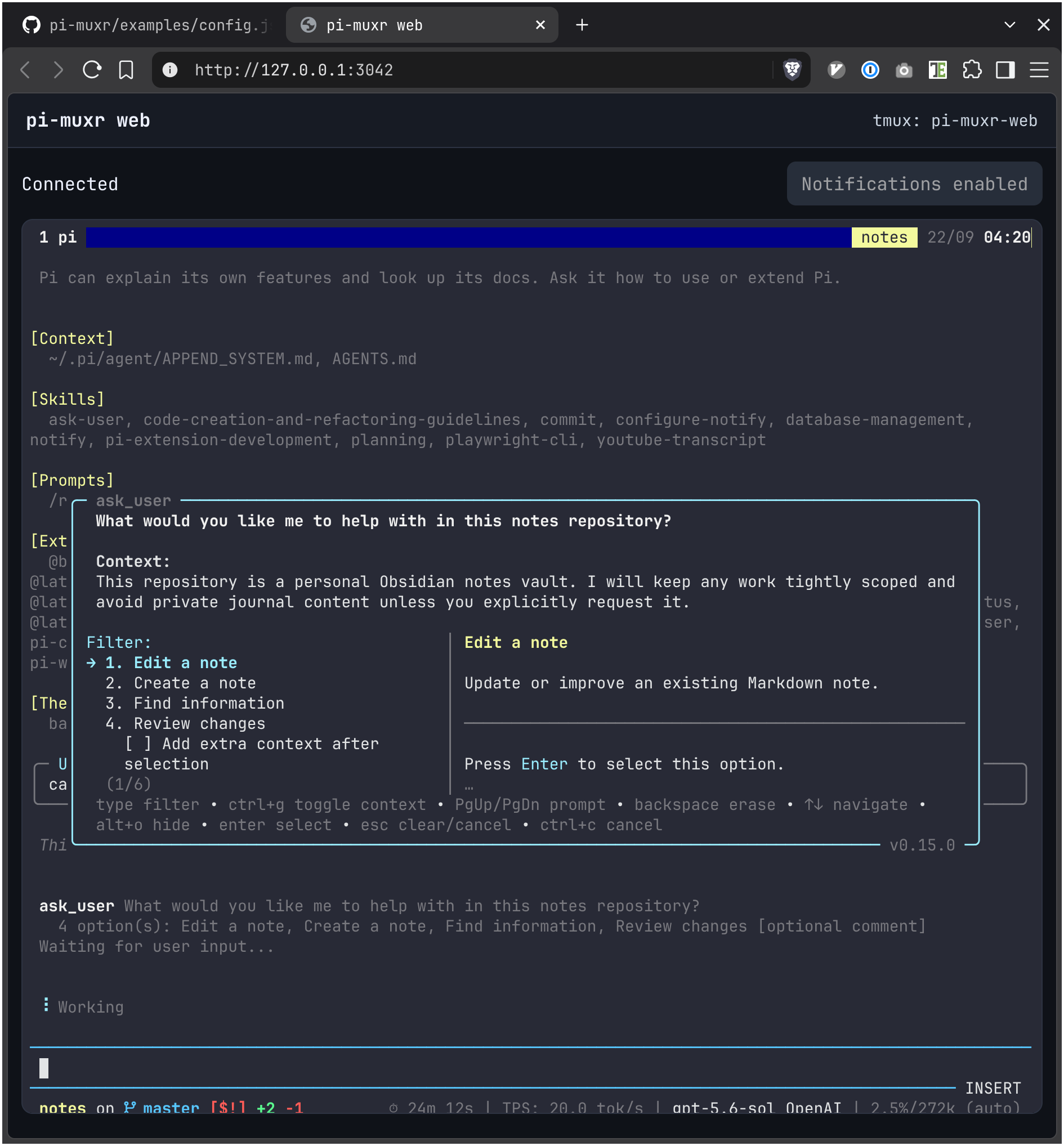
- A web app serving as a proxy for those, so you can continue your work even if you're away from your keyboard.
| Sidebar | Fullscreen | Web App |
|---|---|---|
 |
 |
 |
Installation
Requirements:
Install the extension and its command with Pi:
pi install npm:@yuriteixeira/pi-muxr
Restart Pi after installation, or run /reload in an active session.
To install only the dashboard command globally:
npm install --global @yuriteixeira/pi-muxr
The dashboard command requires pi-tui version 1.x, which is installed as a runtime dependency.
Pi may warn about this dependency because it also supplies pi-tui to extensions. This package
uses pi-tui only in its standalone dashboard command, not in its Pi extension.
Usage
# Open the dashboard in the current pane
pi-muxr

# Toggle the pinned dashboard sidebar
pi-muxr --sidebar
pi-muxr --sidebar right
pi-muxr --sidebar left

# Exit after selecting a session, useful in a tmux popup
pi-muxr --quit-on-select

# Output Pi sessions to standard output
pi-muxr --list

# Print the installed version
pi-muxr --version

# Start the web dashboard and terminal
# so you can continue your work from another device
pi-muxr --web
Run pi-muxr --sidebar inside tmux to open and pin a full height dashboard pane on the right side of every window in every tmux session. Pass left or right to select the side. Each pane uses at most 25 percent of the window width. New tmux sessions and windows receive the same sidebar while it is pinned. A sidebar closes with its window when no other pane remains in that window. The pinned sidebar is toggleable. Run the same command again to close all dashboard sidebar panes and remove the pin.
Use --quit-on-select to close the interactive dashboard after Enter focuses the selected row. The browser server binds to 0.0.0.0:3042 by default, so devices on the local network can connect to it. When the web server starts, the terminal shows a URL with the machine IPv4 address and a QR code for that URL. The URL opens the web dashboard at /landing. Select a session row to open its tmux pane on the /terminal page.
Tmux shortcuts
Add bindings like these to ~/.tmux.conf:
# Press the tmux prefix, then m, to open pi-muxr in a popup.
bind-key m display-popup -E -w 90% -h 90% "pi-muxr --quit-on-select"

# Press the tmux prefix, then s, to toggle the pinned right sidebar.
bind-key s run-shell "pi-muxr --sidebar right"
The default tmux prefix is Ctrl+b. With these bindings, press Ctrl+b, then m for the popup, or press Ctrl+b, then s for the sidebar. Change right to left if you want the sidebar on the left.
Reload the tmux configuration after you save it:
tmux source-file ~/.tmux.conf
The popup closes after you select a session because it uses --quit-on-select. The sidebar stays pinned across existing and new tmux sessions and windows. Use the same sidebar shortcut again to close it and remove the pin.
Configuration
Configuration is optional. When ~/.pi-muxr/config.json does not exist, pi-muxr uses its built in defaults.
The repository provides an example configuration with every available setting. From a repository checkout, copy it to the configuration path:
mkdir -p ~/.pi-muxr
cp examples/config.json ~/.pi-muxr/config.json
To check the active configuration, including defaults and your changes, run:
pi-muxr --config