@jordyvanvorselen/pi-monitor0.4.1
Watch long-running processes like GitHub Actions runs in the background. Pi wakes only when something worth knowing happens.
Untested on omp
This is a pi package. No one has reported whether it works on omp yet. If you try it, add your result below.
Reports 0
No reports yet.
Readme
pi-monitor

CI runs, dev servers and logs, watched in the background. Pi wakes only when something happens.
Watch long-running things in the background from pi: GitHub Actions runs, pull request checks, dev servers, builds, log files, URLs and processes. Pi keeps working or goes idle, and wakes up only when something worth knowing happens.
Without this extension a model waits with sleep 60 && gh run view … loops or a blocking gh run watch. That blocks the session and burns tokens on every poll. With pi-monitor those waits move to the background: the model starts a monitor, or just runs the command and pi-monitor moves it. Either way it gets an answer in milliseconds and moves on. Progress goes to the screen, not to the model. The model hears about the end, and about failures right away.
Quick start
Install the package:
pi install npm:@jordyvanvorselen/pi-monitor
Or install from a local checkout:
pi install /path/to/pi-monitor
Or try it for one run without installing:
pi -e npm:@jordyvanvorselen/pi-monitor
Then ask pi something like "push this and watch CI". The model calls:
monitor({ description: "CI for PR #42", gh_run: "latest" })
→ Started m1 "CI for PR #42" (gh run latest). You will be notified when it ends. Continue with other work.
A dock appears above the editor, as in the animation at the top.
The dock as text
╭─ ◉ monitors ──────────────────────────────────────────── 3 running · 1 failed · saved ~6.2k tok ─╮
│ ⠸ e2e #17     ●━━✗┄┄○  checkout ✗ Run cart.spec.ts             pi is on it ↳  ██▌    ~2m   2m10s │
│ ⠸ dev server  ▁▁╱╲▁▂▂▁▁▁╱╲  last: GET /api/users 200 in 12ms · 1s ago                     10m00s │
│ ⠸ CI #42      ●━━●━━◐┄┄○  test ▸ Run unit tests                               ████▋  ~1m   4m43s │
╰─────────────────────────────────────────────────────────────────────────── ctrl+shift+m details ─╯
When a job fails, the model gets one short message with the tail of the failed log:
[monitor m1 "CI for PR #42"] job "test" failed
job "test" step "Run unit tests" failed:
  ✗ extension.test.ts > loads rules lazily
    Expected 2, received 3 (tests/extension.test.ts:88)
log: /tmp/pi-monitor/<session>/m1.log
GitHub sources need the GitHub CLI (gh), logged in with gh auth login.
The tools
The model gets two tools. Pi adds three short guideline lines to the system prompt while the tools are active: long commands are fine in bash because pi-monitor moves them to the background, and monitor gives explicit control.
monitor
Starts a watcher and returns at once. Give exactly one source.
| Parameter | Meaning |
|---|---|
description |
Short label for the UI and the messages, such as "CI for PR #42". |
command |
Shell command. Each stdout line is an event. Filter it yourself, e.g. grep --line-buffered. |
gh_run |
GitHub Actions run id, run URL, "latest" for the newest run of HEAD, or "next" to wait for the next run that starts. |
branch |
For gh_run "latest"/"next": the branch to look at. Default: the current branch. |
workflow |
For gh_run "latest"/"next": only runs of this workflow. |
gh_pr |
Pull request number or URL. Watches all its checks. |
file |
File to tail. New lines only. Use with match. |
url |
Wait until the URL answers 2xx. |
pid |
Wait until the process exits. |
match |
Regex. Only matching lines become events. Applies to stdout and stderr. |
wake |
"final", "events" or "never". See below. |
timeout_minutes |
Default 30, at most 240. |
monitor_stop
Stops a monitor by id, such as "m3", or "all". A stop the model asks for does not wake it.
Every stop is recorded with its reason: stopped by the model, stopped by the user, stopped at session shutdown, or timed out. The dock and /monitors show it, e.g. ■ dev server stopped by the user after 1m41s.
There is no read tool. Messages about failures, timeouts and cut output name the log file, and the model reads it with read. A success that fits is just the status, a short summary and, for commands that only report at the end, their last output.
When the model wakes up
wake |
The model gets | Default for |
|---|---|---|
final |
One message when the watcher ends, plus every failure. | gh_run, gh_pr, url, pid |
events |
Every matching line, batched, plus the end. | command, file |
never |
Nothing. The UI only. |
- Pi is idle: the message starts a turn.
- Pi is busy: the message waits until the current run ends, as a follow-up.
- A failure while Pi is busy: the message steers the current run, so the model can stop work that depends on green CI.
Messages are short. Lines that arrive within half a second are batched, at most 20 lines per message, repeated lines are collapsed ((×37) Waiting for job…), and a message is capped at about 400 tokens. A monitor that wakes the model more than 10 times in a minute is paused: it keeps running and logging, but stops waking the model, and the model is told once to tighten match or use wake: "final".
What you see
- Dock above the editor. One row per monitor. GitHub rows show a job track (
●done,◐running,○queued,✗failed), the current job and step, an ETA bar based on the median of the last ten green runs of the same workflow, and the elapsed time. The run name links to GitHub. Other rows show a heartbeat line and the last line with its age. Every new line of output draws a beat that scrolls to the left. A source that stays silent for five minutes turns into a warningquiet 5m.pi is on it ↳shows while the model handles a message from that monitor. - Colour and motion. The dock uses the colours of your Pi theme. Green, red and yellow come from its success, error and warning colours, blue from its link colour. The border runs from green to blue, and a soft light sweeps along it every few seconds. The dot next to
monitorslights up when output arrives. The running job turns yellow on the track. The ETA bar fills smoothly from yellow to green. A failing run gets a red glow that breathes behind its row. - Moments. A run that goes green flashes, then dissolves from right to left into
✓ CI #42 green in 6m02s. The row disappears after 10 seconds. The terminal title shows⠹ pi · CI 3/5, then✓ CI greenor✗ CI failed. A desktop notification goes out when a monitor ends, in terminals that support OSC 9, 99 or 777. - Any terminal. Dark and light themes both work. On a light background bright tips turn dark instead of white and glows are softer. Terminals without 24-bit colour get the closest of 256 colours and no glow. The dock only animates while something runs or a finished row is still on screen. With
reducedMotionthe colours stay but nothing moves. - Savings meter. The dock estimates the tokens saved compared to a polling loop: one poll per 30 seconds at about 200 tokens, minus what pi-monitor actually delivered. It ignores the cost of re-reading the context on every poll, so the real saving is higher.
- Always the full card. The dock shows whenever monitors exist, also while pi is working, and disappears when there are none. Narrow terminals get compact rows like
⠹ CI #42 3/5 4m. More than four monitors show the three most important (failures first) and+2 more. - Bash commands on probation. While the safety net waits to see whether a command ends, its row shows at once:
⏳ yarn dev ▁╱╲▁▂▂ last: … · 2s ago background in 9s. If the command ends in time the row disappears quietly. If not, it becomes a normal running row. ctrl+shift+mopens/monitors; press it again orescto close. The key needs a terminal with the kitty keyboard protocol (kitty, Ghostty, WezTerm, recent iTerm2). Setshortcutto"alt+m"for other terminals.
/monitors
Opens an overlay with all monitors of the session, a per-job timeline of the selected one and a live tail of its log.
| Key | What it does |
|---|---|
↑↓ |
Select a monitor |
| enter | Full log view. Scroll with ↑↓, PgUp and PgDn. |
o |
Open the run or pull request in the browser, or the log file |
s |
Stop the selected monitor |
| esc | Close |
Long commands in bash
The model does not have to use monitor at all. pi-monitor looks at every bash call and moves waits and long-running commands to the background, so pi never sits blocked:
- Known waits become monitors at once:
gh run watch <id>,gh pr checks <pr> --watch,sleep 40 && <command>(a timer that runs the command later and reports its output) andtail -f <file>, optionally piped through a simplegrep. The model getsRunning in background as m3 (…). You will be notified when it ends. - Obviously short commands like
ls,cat,rg,jqandgit statusrun as usual. - Everything else is a suspect. If you have a classifier model configured, pi-monitor asks it whether the command finishes on its own. Without one it guesses from keywords such as
dev,serve,watch,deploy,--followordocker compose up. A clear "short" runs as usual. A clear "background" becomes a monitor right away. - Unsure commands go to the safety net. pi-monitor runs the command itself and bash waits for it. If it ends within 30 seconds, the model gets its output and exit code as usual. If it is still running, the model gets the output so far and
Still running after 30s. Moved to background as m4 (…). You will be notified when it ends.The command keeps running as a monitor. Atimeouton the bash call is respected.
Pi keeps the original tool call, so the transcript and the model's history show the command as the model wrote it. The result says what happened, and while the monitor runs it carries a → monitor m3 tag.
Things to know:
- The safety net runs the command in a separate shell, with Pi's
shellPathandshellCommandPrefixsettings. Like any bash call in pi,cdandexportdo not carry over to the next call. - Commands moved to the background end when pi exits. A
timeouton the bash call becomes the monitor's timeout (asleep 45 && …timer always gets at least its sleep plus 15 seconds). Without one, background commands time out after four hours and timers after their sleep plusdefaultTimeoutMinutes. - Only interactive and RPC sessions are intercepted. In print and JSON mode nothing would receive the later message, so bash runs as usual.
- Set
PI_MONITOR_INTERCEPT=0to turn the interceptor off. If anything goes wrong inside it, the command runs unchanged and the error goes to<tmp>/pi-monitor/interceptor.log.
Herdr
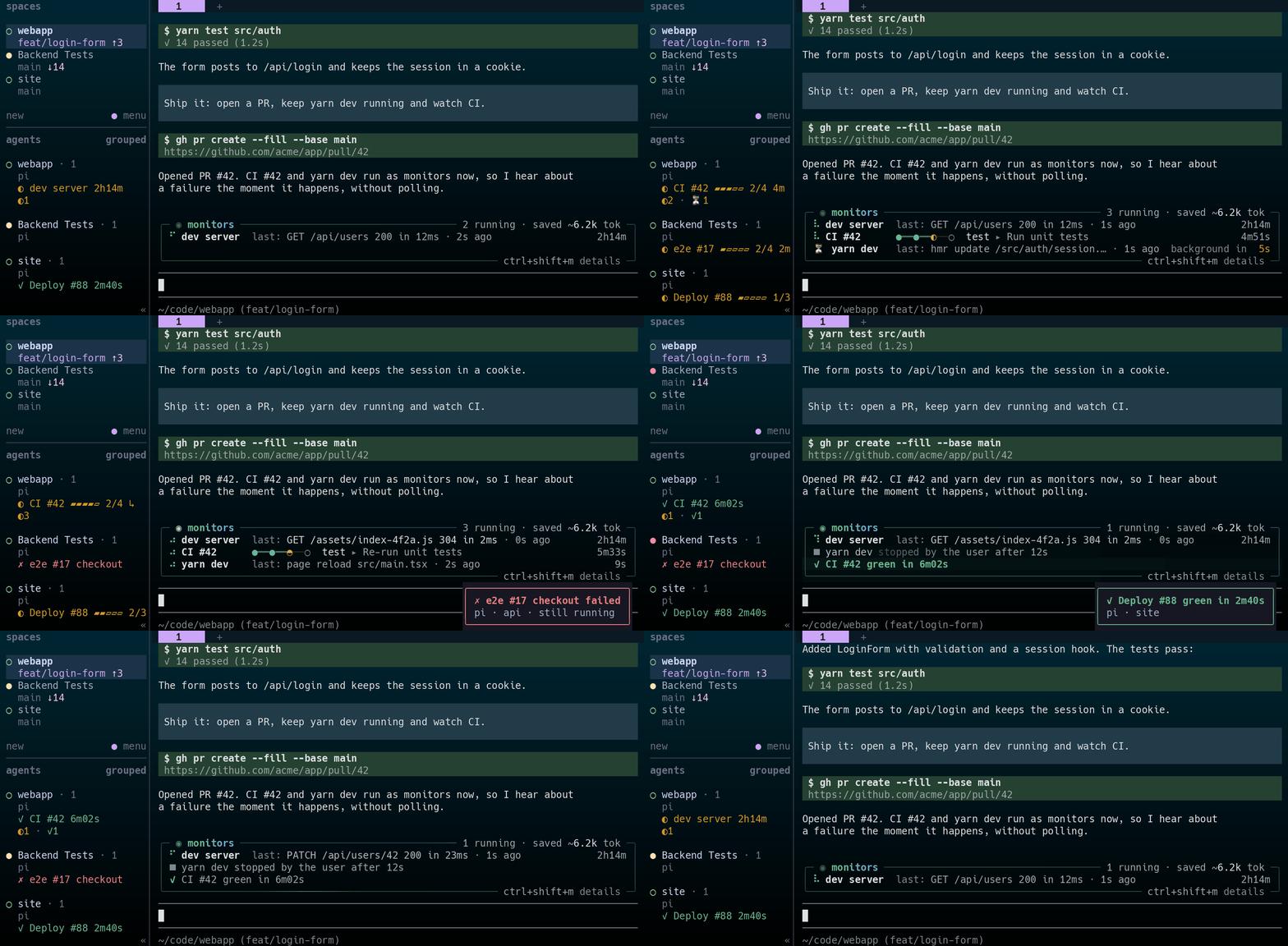
Herdr's sidebar with pi-monitor's rows next to the dock, from the same story.
When pi runs inside Herdr, pi-monitor can show your monitors in the agents section of the Herdr sidebar, so you see CI from any tab.
 agents
 ● pi-monitor
   pi
   ✗ e2e #17 checkout ↳     ← $mon, red
   ✗1 · ◐2 · ⏳1             ← counts: red, gold, gold
- One line under the pi pane: the most important monitor. Failures first, then running GitHub runs, then a run that just went green, then other monitors. For example
◐ CI #42 ▰▰▰▱▱ 3/5 4m,✗ CI #42 test(the failed job),✓ Deploy #88 2m40s(for 10 seconds, like the dock),✗ tests code 1,◔ build timed outor⏳ yarn dev. - Fits the sidebar: the line aims at 22 columns, which is what Herdr's default 26-column sidebar has room for. The glyph always comes first. A long name is cut first, down to 8 columns. Then the clock goes, then the ETA bar, then the job counts. Clocks read like the dock's:
4m,2h14m. - pi is on it: while pi works on a message from that monitor, the line ends in
↳, like the dock'spi is on it ↳. - Counts row: with two or more monitors on screen, a second line counts them per state:
✗failed (including timeouts),◐running,⏳waiting (a bash command that may still end on its own, or a run waiting for a runner) and✓just finished green. Each count has its own colour, states with zero are left out, and with one monitor the line disappears. Herdr puts·between the counts; the separator cannot be changed. - ETA bar: a running GitHub run with an ETA (the dock's estimate, the median of the last ten green runs) gets a five-cell bar. Cells fill as whole cells, and the last one waits for the end. Without an ETA there is no bar.
- Per pane only: each pi session shows its own monitors under its own pane. The space rows stay as they are, so two pi sessions in one space never overwrite each other.
- Colours: gold while running, red for failures, green for success. They come from your Pi theme when you set it up.
The sidebar updates at most once a second and only when something changes. A new state (the glyph), a count or the ↳ mark goes out on the next second. Changes that only touch the text, like the clock, the ETA bar or the job counts, wait until 5 seconds after the last update. Clocks show whole minutes. Each update makes Herdr redraw its sidebar for every client, so fewer updates keep Herdr over SSH light.
Set it up
Run /monitors herdr. It:
- Sets
"herdr": "on"in the"monitor"section of~/.pi/agent/settings.json. - Adds a
$monrow and a counts row ($mon_fail,$mon_run,$mon_wait,$mon_ok) to the agent rows in Herdr's config,~/.config/herdr/config.toml(or$HERDR_CONFIG_PATH). Herdr only shows values the config puts in a row, so this step is needed. Your own rows stay. If you have none, Herdr's default rows are written out with the new row below them. If you have rows for pi underrows_by_agent, the row goes there. - Lets Herdr check the new config, saves a backup next to it (
config.toml.pi-monitor-<date>-<time>.bak) and asks Herdr to reload it. If Herdr does not accept it, the old file comes back. - Asks whether to mark pi as blocked in Herdr when a monitor fails (the blocked mark) and saves your answer as
"herdrAttention". It only asks while that setting is not set. If you close the question, nothing is saved and the command says how to turn it on later.
Running it again changes nothing. pi-monitor never touches other parts of the file. The added part looks like this, with a # pi-monitor comment above rows:
[ui.sidebar.agents]
# pi-monitor: monitor rows, added by /monitors herdr. Remove the $mon rows to undo.
rows = [
  ["state_icon", "machine", "workspace", "tab"],
  ["agent"],
  [{ token = "$mon", rules = [{ starts_with = "✗", fg = "#FF5F6D" }, { starts_with = "✓", fg = "#3CF2C8" }, { starts_with = "◐", fg = "#FFD66B" }, …] }],
  [{ token = "$mon_fail", fg = "#FF5F6D" }, { token = "$mon_run", fg = "#FFD66B" }, { token = "$mon_wait", fg = "#FFD66B" }, { token = "$mon_ok", fg = "#3CF2C8" }],
]
A config with only the $mon row from an earlier build gets the counts row when you run /monitors herdr again.
Test builds of this feature also added a $ci row to the space rows. /monitors herdr takes that row out again.
/monitors herdr offstops sending anything to Herdr, clears the sidebar values and hides the startup note. The$monrows stay in Herdr's config and show nothing. To remove them, delete those two rows./monitors herdr statusshows whether pi runs in Herdr, the setting and whether the config has the rows.- Until you run one of these, pi shows a yellow note at startup inside Herdr:
Warning: pi-monitor: Herdr detected. Show monitors in the Herdr sidebar with /monitors herdr, or hide this note with /monitors herdr off..
Notifications
With the integration on, the notification when a monitor ends goes to Herdr as a toast instead of to the terminal. A GitHub run also gets a toast the moment its first job fails, while the other jobs still run: ✗ CI #42 test failed, from pi · webapp · still running. That happens once per run attempt, so a rerun that fails again toasts again. When that run then ends as failed, there is no second toast: it would say nothing new. A timeout still gets its own toast. Herdr does not pass terminal notifications from its panes on, so you get one notification, not two or none. A success plays Herdr's "done" sound, a failure or timeout its "request" sound. Herdr shows no toast for the tab you are looking at. desktopNotifications: false turns these off too. If Herdr cannot be reached, the terminal notification goes out instead. If you turned toasts off in Herdr ([ui.toast] delivery = "off"), /monitors herdr tells you and leaves it off.
Blocked mark
/monitors herdr asks about this once. You can also set "herdrAttention": true yourself to mark the pi pane as blocked in Herdr when a monitor fails or times out and pi does not pick it up within 2 seconds, for example a monitor with wake: "never". The label says CI #42 failed. The mark goes away when pi handles the message, a monitor with the same name starts again, you type a message, or the session ends. It needs Herdr's pi integration (herdr integration install pi), which listens for these marks.
Limits
- One line per pi pane: no row per monitor and no job track. The ETA bar is text in that line. Herdr 0.9.3 reads the terminal progress sequence (OSC 9;4) only to detect agent states and does not draw it, so pi-monitor does not send one.
- Herdr cuts long values at the sidebar width with
…. The$monline aims at the default 26-column sidebar, so in a narrower sidebar its end can still fall off. The counts row fits easily. - Errors talking to Herdr never reach pi or the dock. They go to
<tmp>/pi-monitor/herdr.log, and pi-monitor waits longer after each failure (up to a minute) before it tries again.
Sessions and logs
Every start and end is stored in the session as a custom entry. These entries never reach the model. After a resume or /reload, unfinished gh_run and gh_pr monitors restart with the same id. Commands, file tails, URL and pid watchers ended with the old session and show as "ended with the session".
Logs live in <tmp>/pi-monitor/<session id>/<monitor id>.log. Log directories older than seven days are removed at startup.
Shutting down pi stops every monitor and kills the process group of each command, including background children.
Configuration
Add a "monitor" section to ~/.pi/agent/settings.json for user-wide settings, or to .pi/settings.json in a project. Project settings win. Every key is optional.
{
  "monitor": {
    "maxConcurrent": 5,
    "defaultTimeoutMinutes": 30,
    "backgroundAfterSeconds": 30,
    "classifier": "typesafe/jev-latest",
    "desktopNotifications": true,
    "reducedMotion": false,
    "shortcut": "ctrl+shift+m",
    "herdr": "on",
    "herdrAttention": false
  }
}
| Key | Default | Meaning |
|---|---|---|
maxConcurrent |
5 |
Monitors that may run at the same time. |
defaultTimeoutMinutes |
30 |
Timeout when the model gives none. At most 240. |
backgroundAfterSeconds |
30 |
The safety net moves a bash command that is still running after this many seconds to the background. |
classifier |
first available | Classifier the interceptor asks, as provider/id. |
desktopNotifications |
true |
Send a terminal desktop notification when a monitor ends. |
reducedMotion |
false |
No spinner, shimmer, glow or flash. Clocks still update once a second. |
shortcut |
"ctrl+shift+m" |
Key that opens and closes /monitors. Read at startup. |
herdr |
not set | "on" shows monitors in the Herdr sidebar, "off" does not. Set by /monitors herdr [off]. |
herdrAttention |
false |
Mark the pi pane as blocked in Herdr when a failure waits for you. See Herdr. |
Modes
The dock, title, notifications, overlay and the Herdr sidebar only exist in the interactive terminal UI. In print, JSON and RPC modes the tools still work and messages still reach the model. /monitors prints a plain list there.
Development
npm install
npm run lint
npm run typecheck
npm test
Run npm run lint:fix to fix lint and formatting problems. Tests never call the real gh: sources get a run() function that the tests replace with recorded JSON fixtures.
The dock animation in this README is recorded from the real dock renderer. After changing the dock, run npm run record:dock to write a new docs/dock.gif. It needs agg and ffmpeg (brew install agg ffmpeg). The story of fake monitors is in scripts/dock-story.ts. The GIF is not part of the npm package.
The Herdr animation (docs/herdr.gif) runs the same story through pi-monitor's real Herdr code (sidebar tokens, toasts, blocked marks) on a virtual clock, and draws Herdr's window around the real dock: the sidebar rows and colours are what /monitors herdr sets up, the rest of the window is drawn to look like Herdr with the Catppuccin theme. Run npm run record:herdr to write a new one. The scene is in scripts/herdr-story.ts, the drawing in scripts/herdr-view.ts.
Versioning and releases
This package follows semantic versioning. Every pull request must raise the version in package.json. CI fails the pull request when the version is not higher than on main.
Pick the bump that matches the change:
| Change | Command | Example |
|---|---|---|
| Bug fix, docs, internal change | npm version patch --no-git-tag-version |
0.1.0 → 0.1.1 |
| New feature or setting that keeps old behaviour | npm version minor --no-git-tag-version |
0.1.1 → 0.2.0 |
| Breaking change, such as a removed or renamed setting | npm version major --no-git-tag-version |
0.2.0 → 1.0.0 |
The command updates both package.json and package-lock.json. Commit both files.
When a pull request merges, GitHub Actions runs the checks again and publishes the new version to npm. It then creates a GitHub release tagged with the version number, such as 0.1.2. GitHub generates the release notes from the merged pull requests.
Try it against a project without installing:
cd /path/to/project
pi -e /path/to/pi-monitor/src/index.ts
License
MIT